
What Are Work Groups?
Work groups act as dedicated virtual spaces for ongoing projects or recurring collaboration. Unlike one-time meetings, work groups remain available at all times, allowing users to join as needed without scheduling new sessions.
✅ Key Benefits:
-
Persistent Access – Users can enter and exit work groups anytime.
-
Centralized File Storage – Keep relevant documents and images in one place.
-
Project-Based Collaboration – Assign teams to specific work groups for seamless workflow.
1. Creating and Managing Work Groups
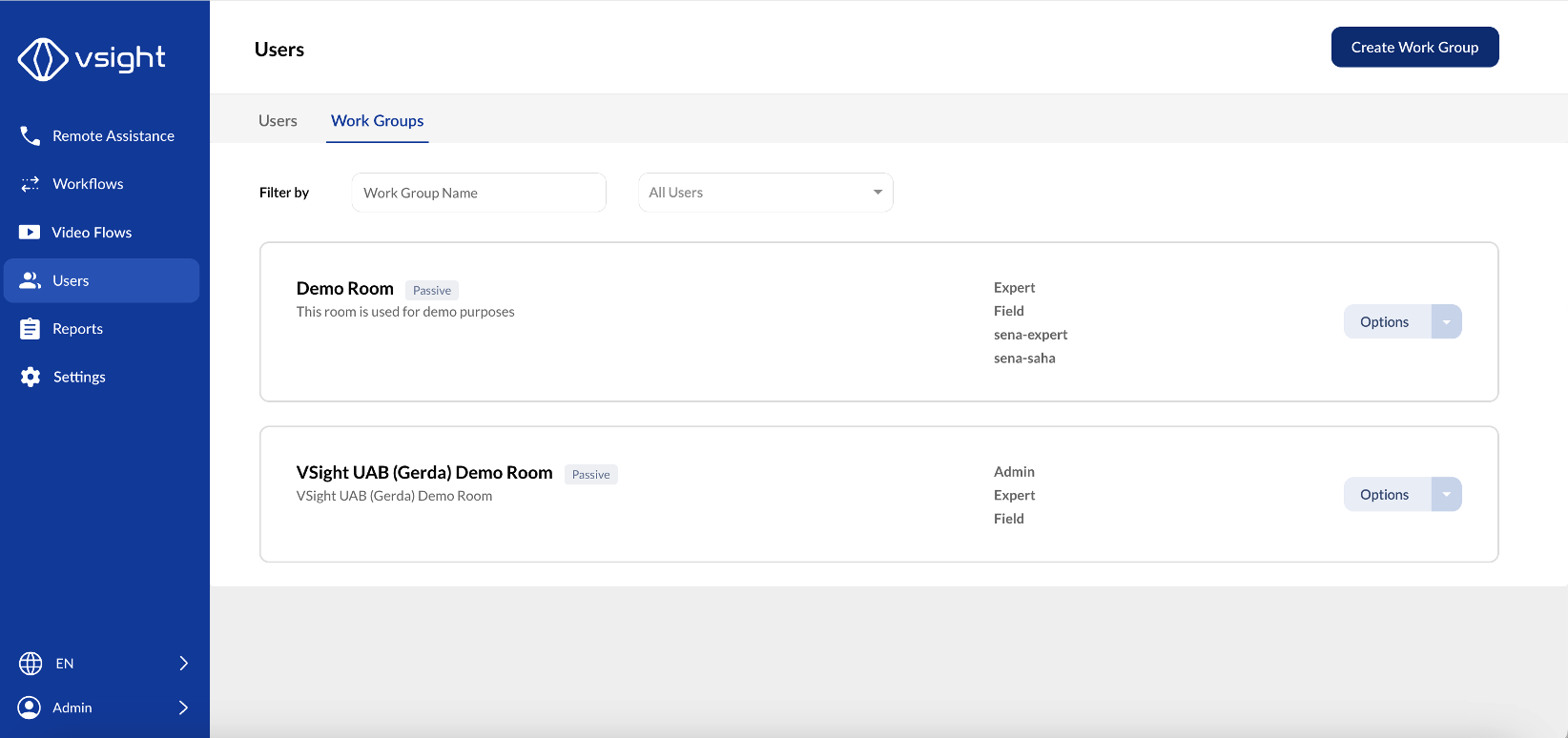
1️⃣ Login with your admin credentials and navigate to the Users tab in the VSight Connected Worker Web App.
2️⃣ Go to Work Groups section, click Create Work Group and personalize it to your needs:
-
Add a name, icon, and description.
-
Choose whether to automatically record all calls.
-
Set permissions to require user consent before starting a session recording.
-
Enable peer-to-peer calls for direct communication.
-
Activate HD streaming on supported mobile devices.
-
Create an academy work group for training purposes.
3️⃣ Go to Users tab and assign work groups to newly created or existing users.
✅ Pro Tip: Use default work group function to automatically put users in a session once they open VSight application.
2. Joining a Work Group
🔹 Joining on Web Application 💻
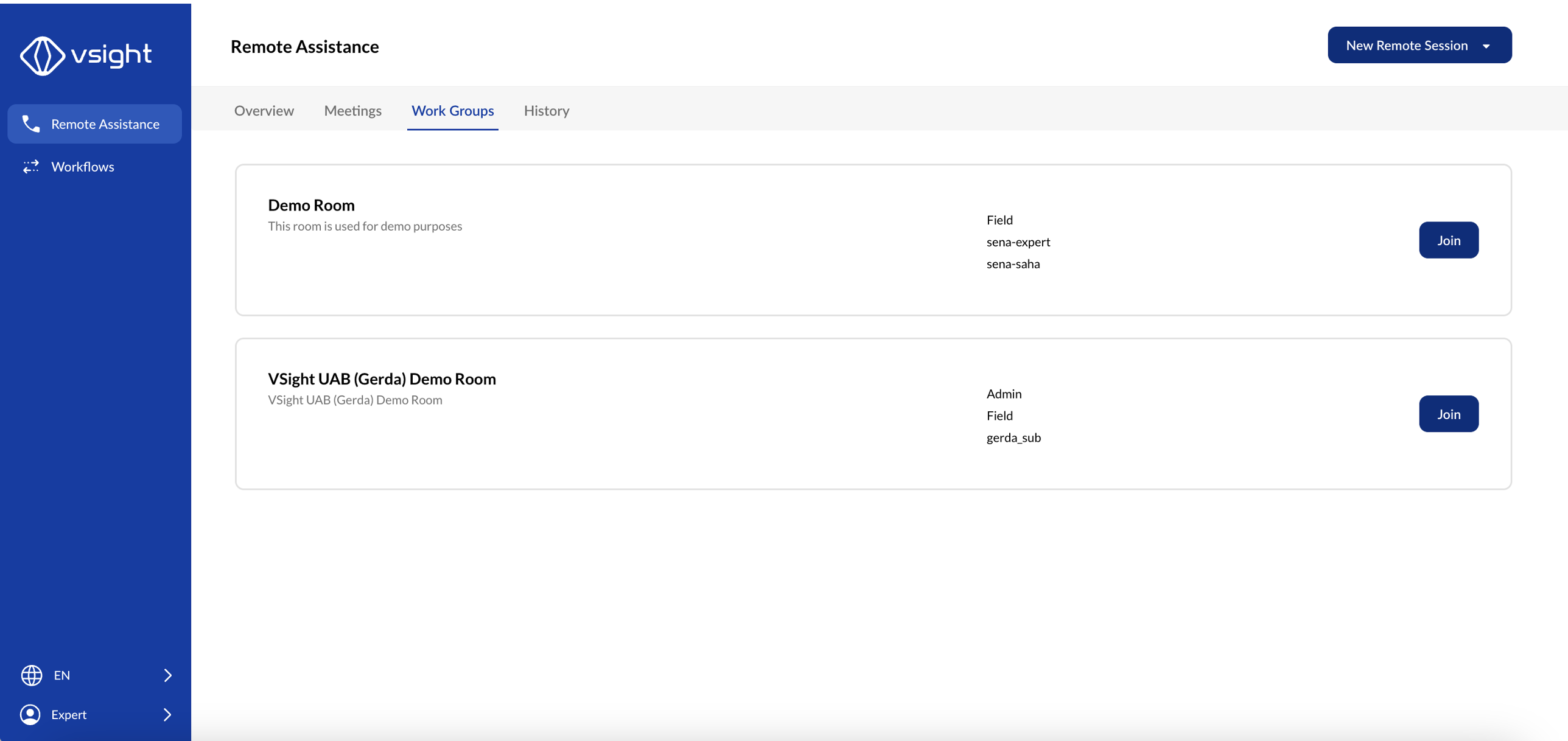
1️⃣ Login to VSight Connected Worker Platform on your computer browser with expert or subscriber account.
2️⃣ Select the Work Groups tab.
3️⃣ Click Join to select the desired work group from the list.
✅ Tip: You can join a Work Group anytime without requiring a new session invite.
🔹 Joining on Mobile Application (Android and iOS)
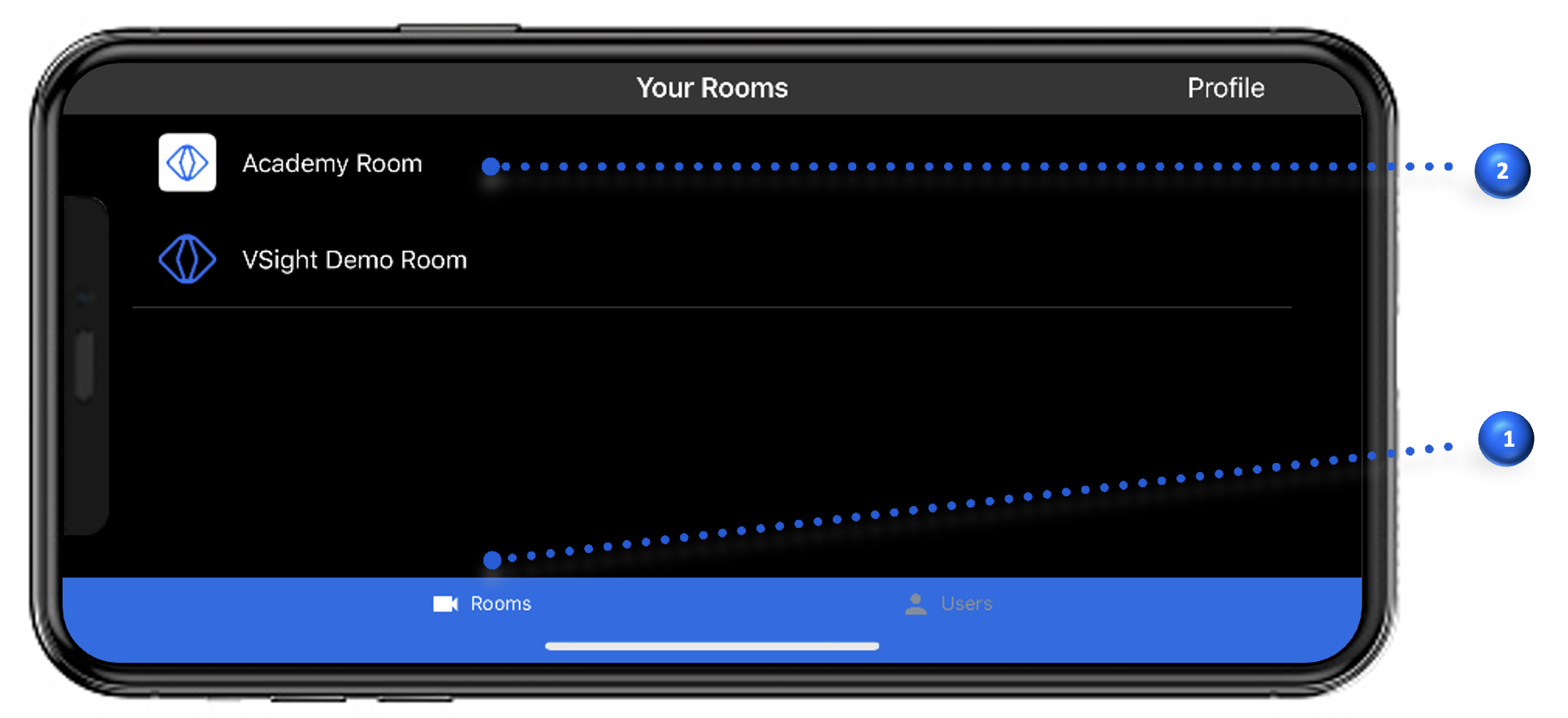
1️⃣ Open the VSight Remote App on your smartphone or tablet.
2️⃣ Tap on the Rooms tab in the main menu.
3️⃣ Click on the desired Work Group from the list.
✅ Tip: Ensure you have a stable internet connection for the best experience
🔹 Joining on Smart Glasses
1️⃣ Open the VSight Remote App on your smart glasses.
2️⃣ Navigate to the Rooms tab.
3️⃣ Use voice commands or touchpad controls (depending on your device) to select a Work Group from the list
✅ Tip: Keep your smart glasses fully charged for uninterrupted collaboration.
📌 Need More Help? – See further information at VSight Help Center or contact support for assistance.