
Guest Access
Guest Access allows non-VSight users to join a remote session via a direct link or QR code, making it easy for external participants to receive real-time assistance.
✅ Key Benefits:
-
No Account Required – Guests can join instantly without signing up.
-
Simple Access via Link or QR Code – Quick entry for external collaborators.
-
Full Participation – Guests can use all necessary functions during the session.
How to Invite a Guest
On Web Application
1️⃣ Start a new session in VSight Connected Worker Platform.
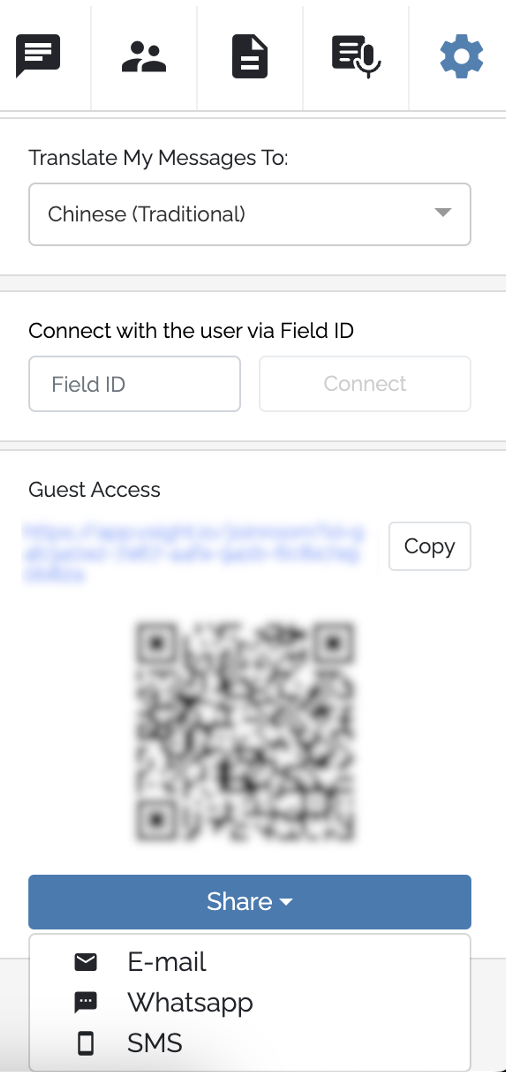
2️⃣ Go to Settings tab.
3️⃣ Click C****reate Guest Access and generate a session link or QR code.
4️⃣ Copy the link or share directly via email, WhatsApp, or SMS.
5️⃣ The guest clicks the link, enters their name, and joins the session.
✅ Tip: Ensure guests allow microphone and camera access for optimal communication.
📌 Important: Sending an invitation via text message is a paid add-on. Please contact your account administrator before using this feature.
On Mobile App (iOS and Android)
1️⃣ Join a session on VSight Remote app.
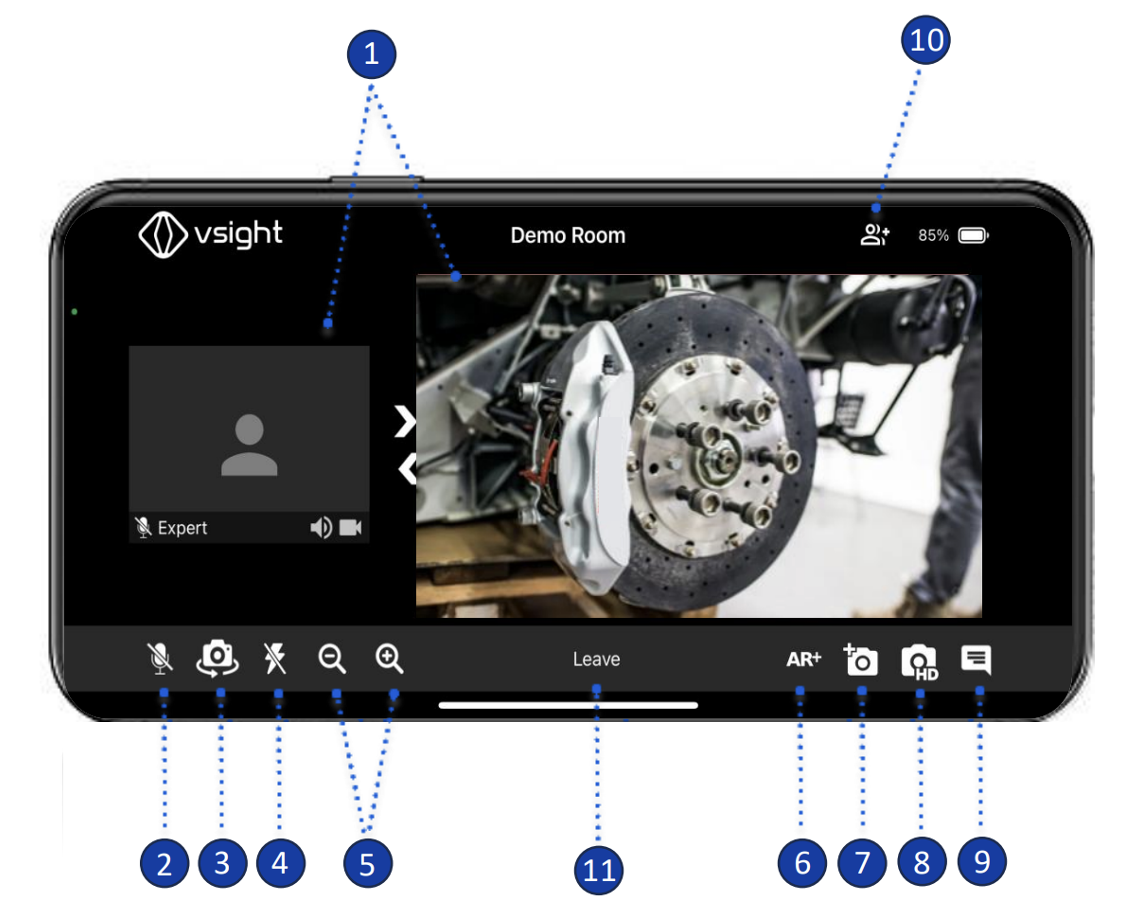
2️⃣ Click on Invitation Icon (10).
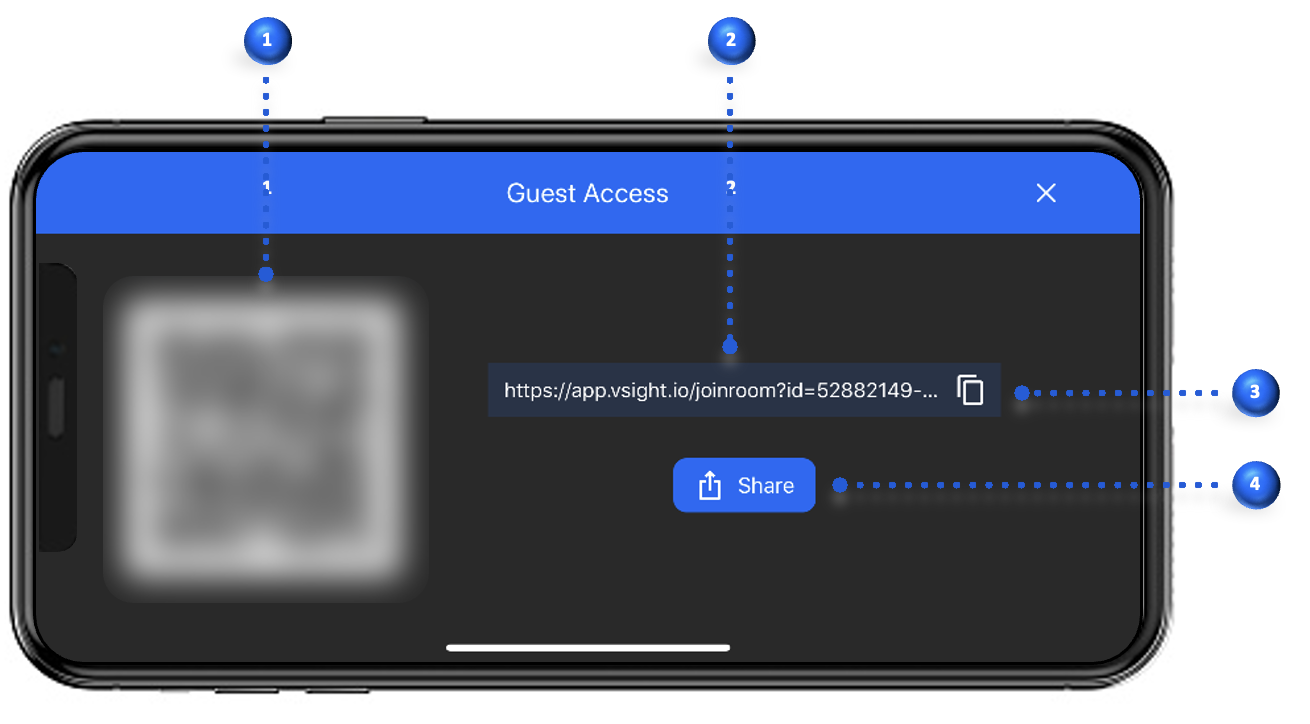
3️⃣ Copy the link or share via chosen communication channel.
4️⃣ The guest clicks the link, enters their name, and joins the session.
On Smart Glasses
1️⃣ Join a session on VSight Remote app.
2️⃣ Select Invitation Icon (10).
3️⃣ Using voice commands, share via chosen communication channel.
4️⃣ The guest clicks the link, enters their name, and joins the session.
Field ID
Field ID is a 6-digit code used to connect field workers or external users with VSight experts. It enables quick access to remote support sessions without requiring login credentials.
✅ Key Benefits:
-
Fast and Secure Connection – Users can join by entering a simple code.
-
No Account Needed – Ideal for field technicians and remote workers.
-
Seamless Expert Support – Instant access to expert guidance and troubleshooting.
How to Use Field ID
1️⃣ Open the VSight Remote App on a mobile device or smart glasses.
2️⃣ Locate the 6-digit Field ID code on the login screen.
3️⃣ The expert enters the Field ID in their VSight Remote session.
4️⃣ Click Connect, and the user is instantly joined to the session.
✅ Pro Tip: Ensure a stable internet connection for a smooth experience.
📌 Need More Help? – See further information at VSight Help Center or contact support for assistance.