
What Are Meetings?
Meetings provide a scheduled collaboration space where users can connect at a specific time. They can be used for various purposes, including training sessions, and customer support calls.
✅ Key Benefits:
-
Scheduled Coordination – Set specific times for meetings.
-
Flexible Access – Users can join via email invitation, meeting links, or from a meeting list on the app.
-
Integrated Outlook Scheduling – Plan meetings directly from your calendar.
How to Access and Use Meetings
Creating a Meeting
1️⃣ Navigate to the Meetings tab in the VSight Connected Worker Platform Web App
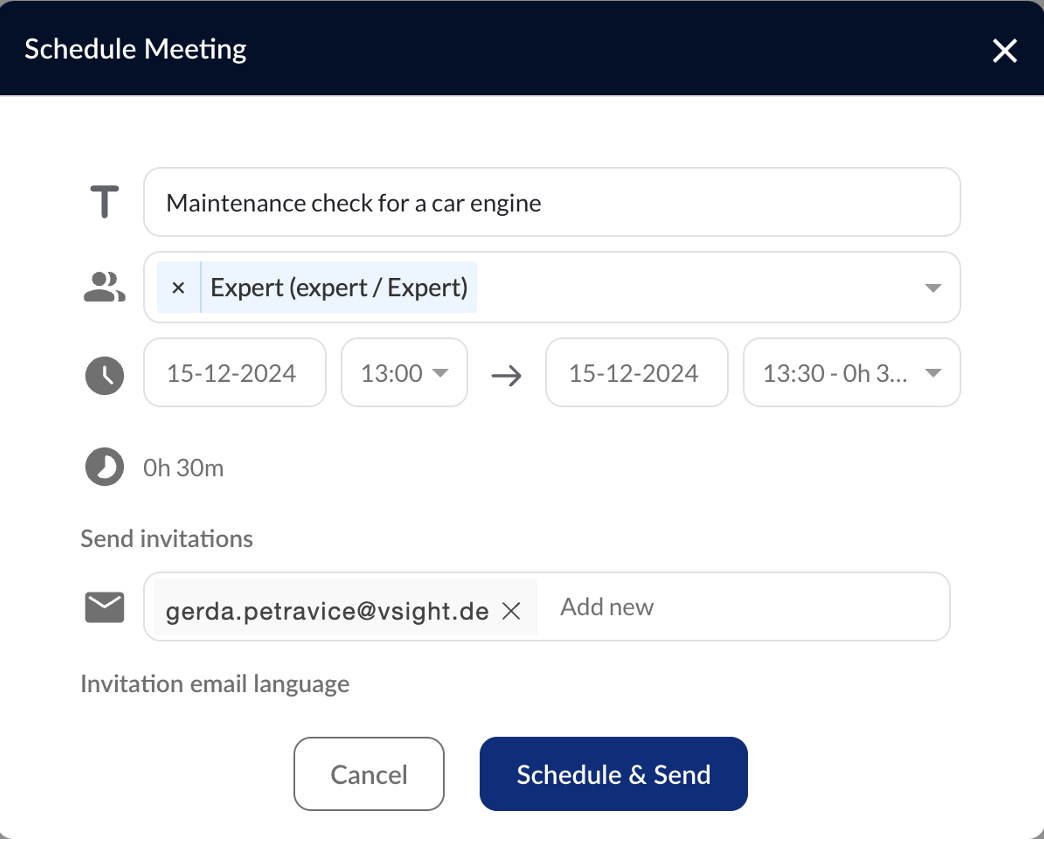
2️⃣ Click New Remote Session and set up the details:
-
Add a meeting name, date, and time.
-
Invite participants from your VSight contact list or external users via email.
3️⃣ Click Schedule & Send to finalize the scheduling.

Outlook Integration
VSight Remote offers seamless integration with Microsoft Outlook, allowing users to schedule and manage meetings directly from their Outlook calendar. To use the integration, you will need to install it first.
How to Use Outlook Integration:
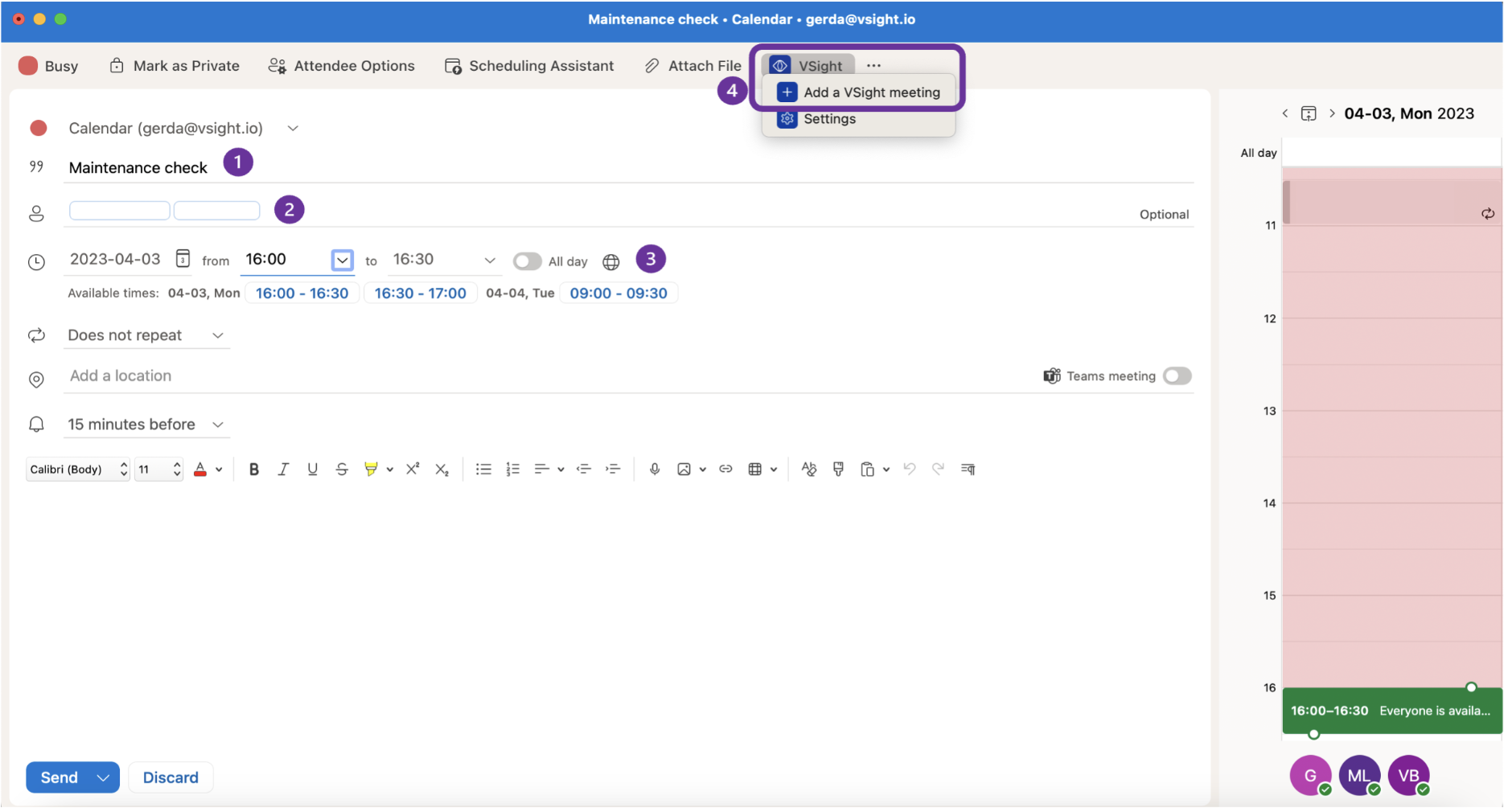
1️⃣ Open Microsoft Outlook and navigate to the calendar section.
2️⃣ Click New Event
3️⃣ Enter meeting details: title, participants, and date.
4️⃣ Click Add a VSight meeting
5️⃣ Send the invite to participants—Outlook will automatically sync it with their calendars.
✅ Tip: Use Outlook reminders to ensure attendees are notified before the meeting.
📌 Important: For the first time, login with your expert credentials to start scheduling meeting.
Joining a Meeting
For Experts (Via Web App)
1️⃣ Open your web browser and go to VSight Connected Worker Platform.
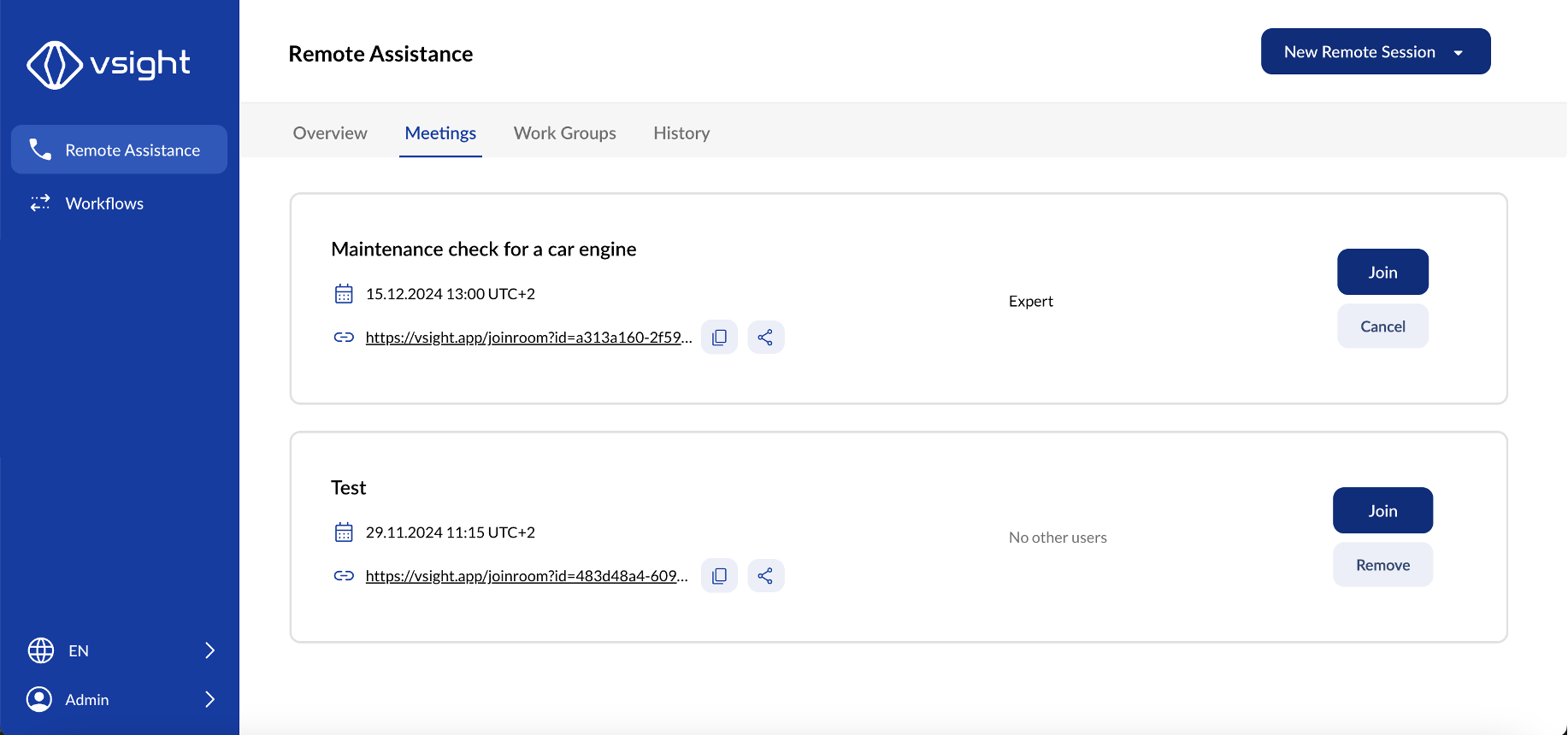
2️⃣ Navigate to the Meetings tab.
3️⃣ Select the scheduled meeting and click Join.
4️⃣ Allow access to your microphone and camera for communication.
For Subscribers (Via Mobile App)
1️⃣ Open the VSight Remote App on your mobile device.
2️⃣ Tap on the Rooms tab. Scheduled meetings will appear in the same window.
3️⃣ Click on the meeting you wish to join.
✅ Tip: If you have been invited via email and not via user account, use the received meeting link to join.
📌 Important: Invited subscribers do not receive email notifications.
For Guests (Via Link or Invitation)
1️⃣ Click the meeting invitation link received via email or in your calendar.
2️⃣ The link will open in your web browser or the VSight Remote App (if installed).
3️⃣ Enter your name and allow microphone and camera access.
4️⃣ Click Join to enter the session.
On Smart Glasses
1️⃣ Open the VSight Remote App on your smart glasses.
2️⃣ Navigate to the he Rooms tab. Scheduled meetings will appear in the same window.
3️⃣ Use voice commands to select the scheduled meeting from the list.
✅ Tip: Keep your smart glasses fully charged and connected to a stable network for optimal performance.
📌 Need More Help? – See further information at VSight Help Center or contact support for assistance.