
Permissions Granted
✅ The VSight add-in modifies calendar event content in Outlook to insert VSight Remote meeting details.
✅ Users must have the correct permissions to install add-ins (IT admin approval may be required).
Installing a Custom Add-In from a File in the New Outlook
Follow the steps below to install the VSight Outlook Add-in manually using the new Outlook experience:
1️⃣ Download the manifest file for the Outlook Add-in from this link:
🔗 https://outlook.vsight.io/manifest.xml
2️⃣ In your preferred browser, go to: https://aka.ms/olksideload.
This will open Outlook on the web and automatically load the Add-Ins for Outlook dialog after a few seconds.
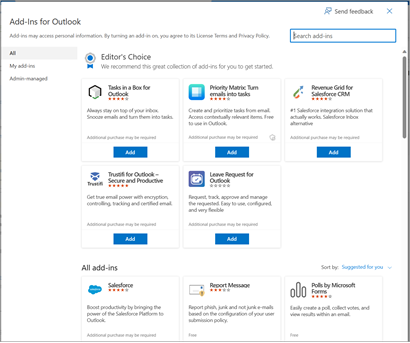
3️⃣ In the Add-Ins dialog, click on “My add-ins”.
4️⃣ Under Custom Add-ins, select “Add a custom add-in” and choose “Add from File”.
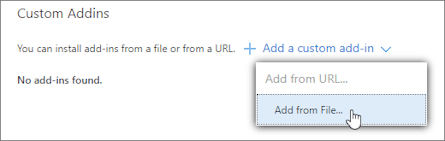
📌 Note: The “Add from URL” option is no longer available. If you have a URL, first download the add-in file using your browser, then upload it using the “Add from File” option.
5️⃣ Locate the downloaded XML file from Step 1 on your device.
6️⃣ Select the file and click “Open” to install the add-in.
✅ The VSight Outlook Add-in will now appear under “My add-ins” and is ready for use in your Outlook calendar.
For more information, visit Microsoft’s Support page about installing add-ins.