
Using VSight for Freshdesk to Schedule Live Remote Sessions
Overview
If you use Freshdesk as your CRM, you can now schedule live VSight Remote sessions directly from any Freshdesk Ticket — without switching tabs or using extra tools.
This integration streamlines your support process, helping you connect with customers and experts faster.
Key Features
-
One-click session creation from the ticket view
-
Supports both customer & expert email addresses
-
VSight meeting link is automatically logged to the ticket as a note
-
Customer and expert both receive email notifications, just like when using our “Schedule Meeting” feature
How to Activate the Integration
-
Install the VSight for Freshdesk app.
-
Add the VSight App to your Freshdesk Ticket view.
How to Schedule a VSight Session in Freshdesk
-
Open the ticket where you want to schedule the session.
-
Locate the VSight Freshdesk App from right.
-
Enter the Expert Email.
-
Adjust the Session Title and Start Time if needed.
-
Click Create VSight Session.
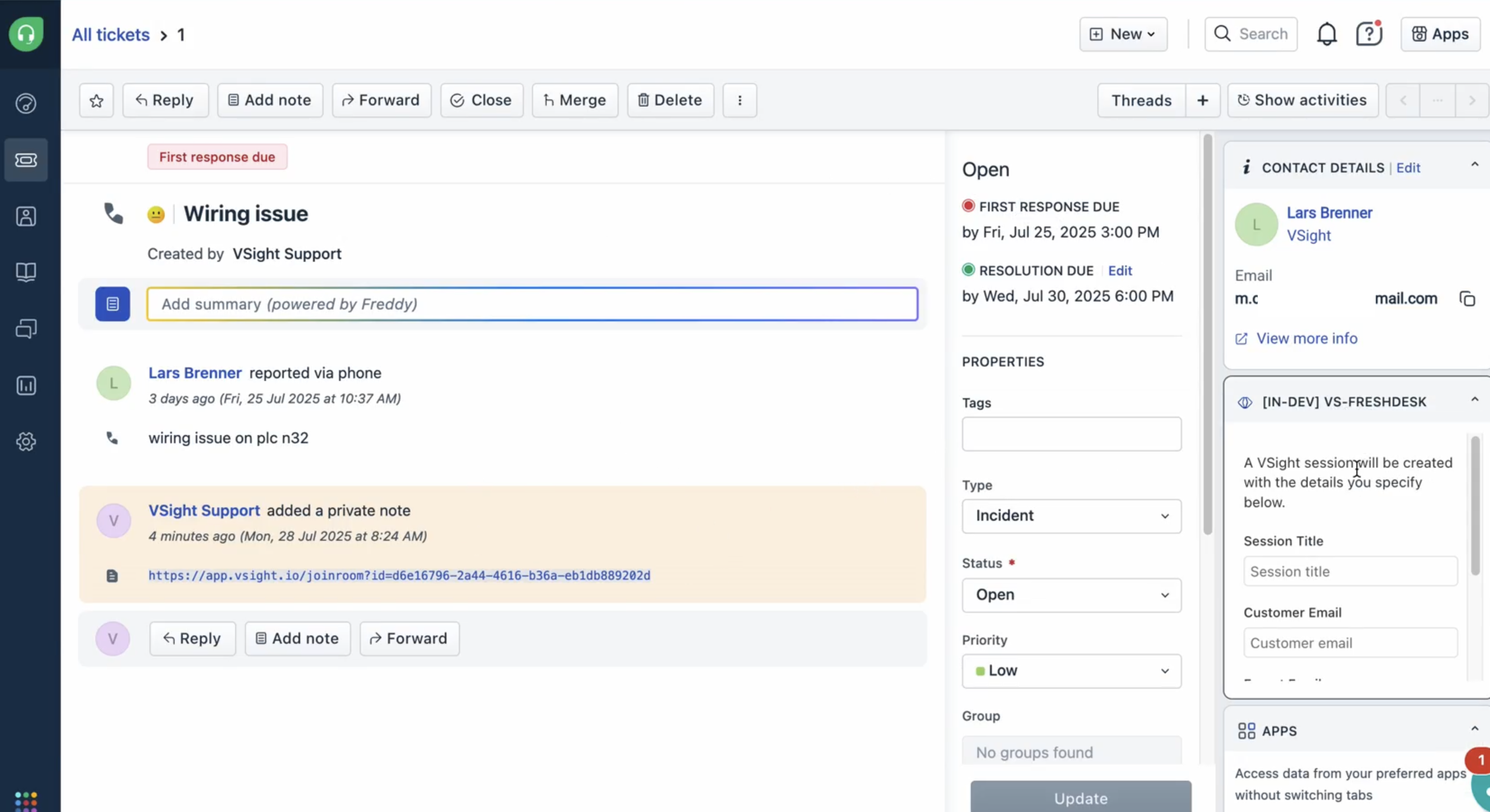
The session link will be:
-
Added to the ticket as a note
-
Sent to both the customer and expert via email
Benefits
-
Save time by avoiding tool switching
-
Keep all records in one place for better tracking
-
Improve customer experience with faster response and easier connection to experts