
1. Creating a Video Flow
1.1 Start a New Video Flow
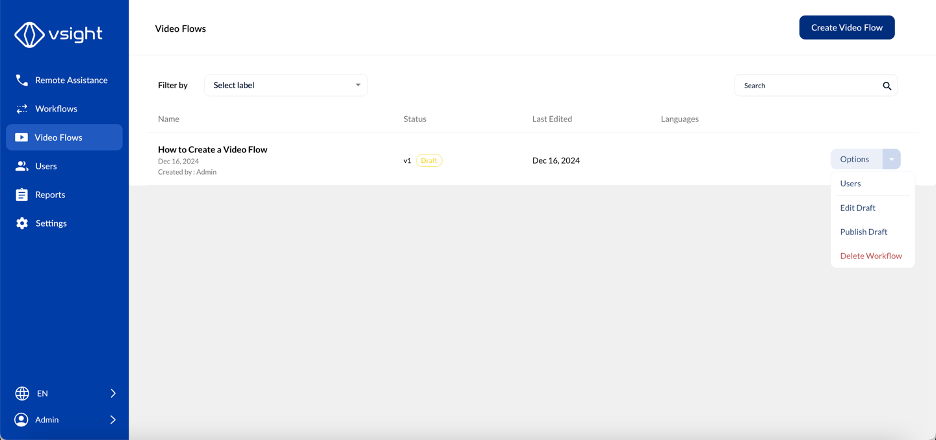
✅ Click the “Create Video Flow” button in the upper right corner.
1.2 Upload a Video
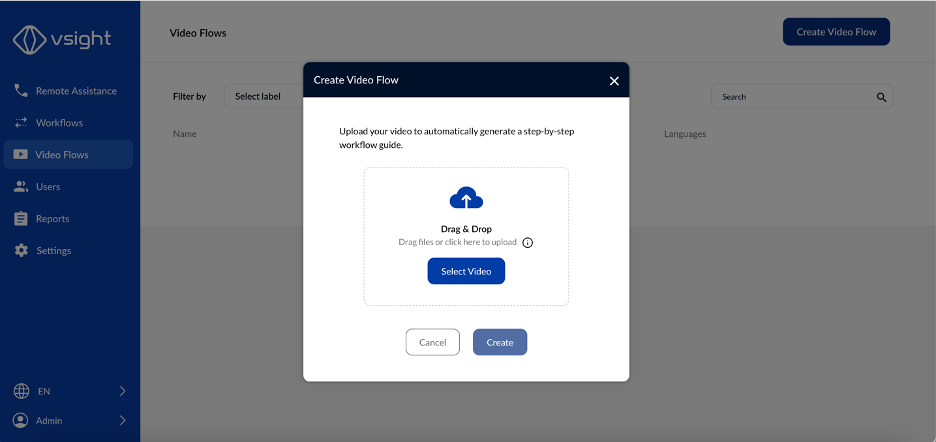
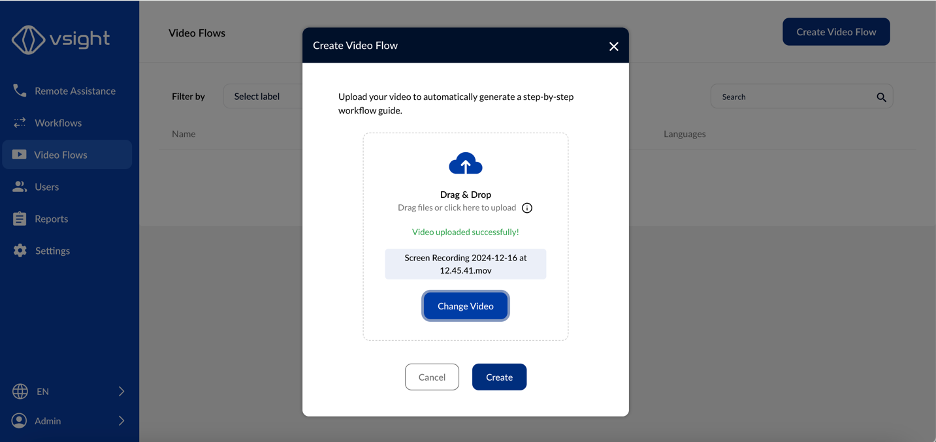
✅ Select a video from your device or drag and drop it into the dedicated window.
✅ If you selected the wrong video, you can change it before processing.
✅ Click “Create” to start the workflow generation.
1.3 Define Video Flow Settings
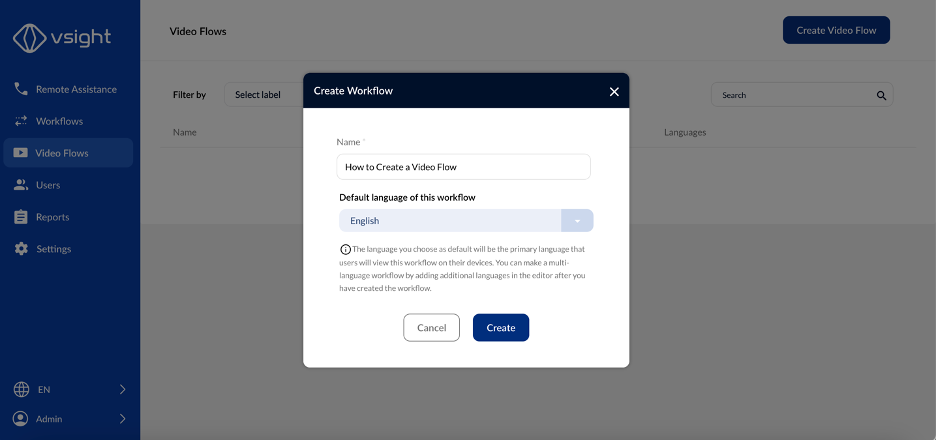
✅ Select a default language for transcription.
✅ Enter a training title to identify the workflow.
2. Processing & Editing Video Flows
2.1 Video Processing
✅ Once processing starts, a progress window will be displayed.
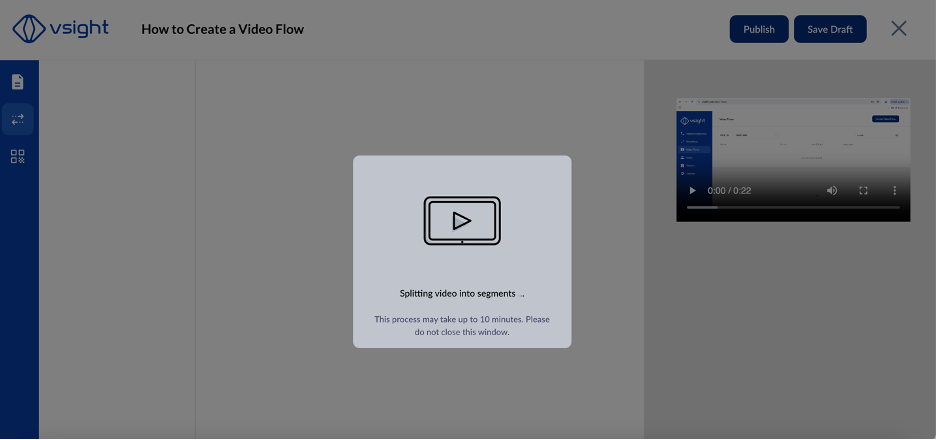
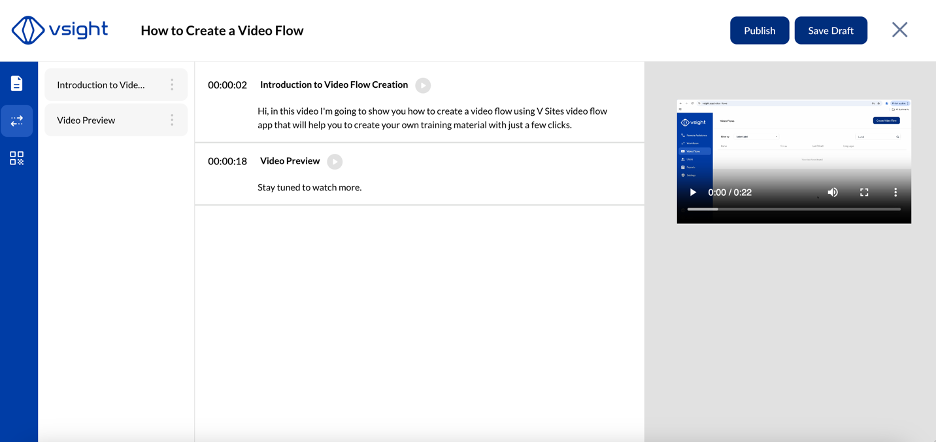
✅ When processing is complete, the system will automatically generate sections based on topics.
✅ A transcription of the video will be available.
2.2 Adjusting Sections
✅ Sections can be adjusted by dragging the separation lines up or down.
3. Finalizing the Video Flow
✅ After section adjustments, finalize the workflow like a regular workflow by:
-
Adding a description
-
Setting the duration
-
Adding labels for easy search
✅ Easy Access can be enabled to share the Video Flow with external users.
By using Video Flow, admins can quickly convert expert knowledge into structured training workflows, making knowledge transfer more efficient in VSight Workflow.
📌 Need More Help? – See further information at VSight Help Center or contact support for assistance.