
Managing Child Accounts & Workflow Sharing in VSight
Overview
VSight now supports a Parent–Child Account structure, enabling organizations with multiple domains, subsidiaries, or sites to:
- Centrally manage and distribute workflows
- Share approved workflows from a master (parent) account
- Keep each domain’s data isolated and secure
- Track usage and submissions per domain
TL;DR: VSight’s Parent–Child Account structure allows central administrators to securely share workflows across multiple domains while maintaining data isolation. Parent accounts control distribution, access, and usage limits, while child accounts execute workflows independently. This enables scalable, multi-site governance without losing local operational control.
This feature is ideal for enterprises operating across multiple locations while maintaining centralized governance.
What Is a Child Account?
A Child Account is a separate VSight domain linked to a Parent (Master) Account.
- The Parent Account creates and owns shared workflows.
- The Child Account receives selected workflows in read-only mode.
- Each child domain keeps its own users, reports, and submissions.
- Child accounts cannot see each other’s data.
Account Hierarchy Structure
Parent Account
- Can create and publish workflows
- Can select which child accounts can access each workflow
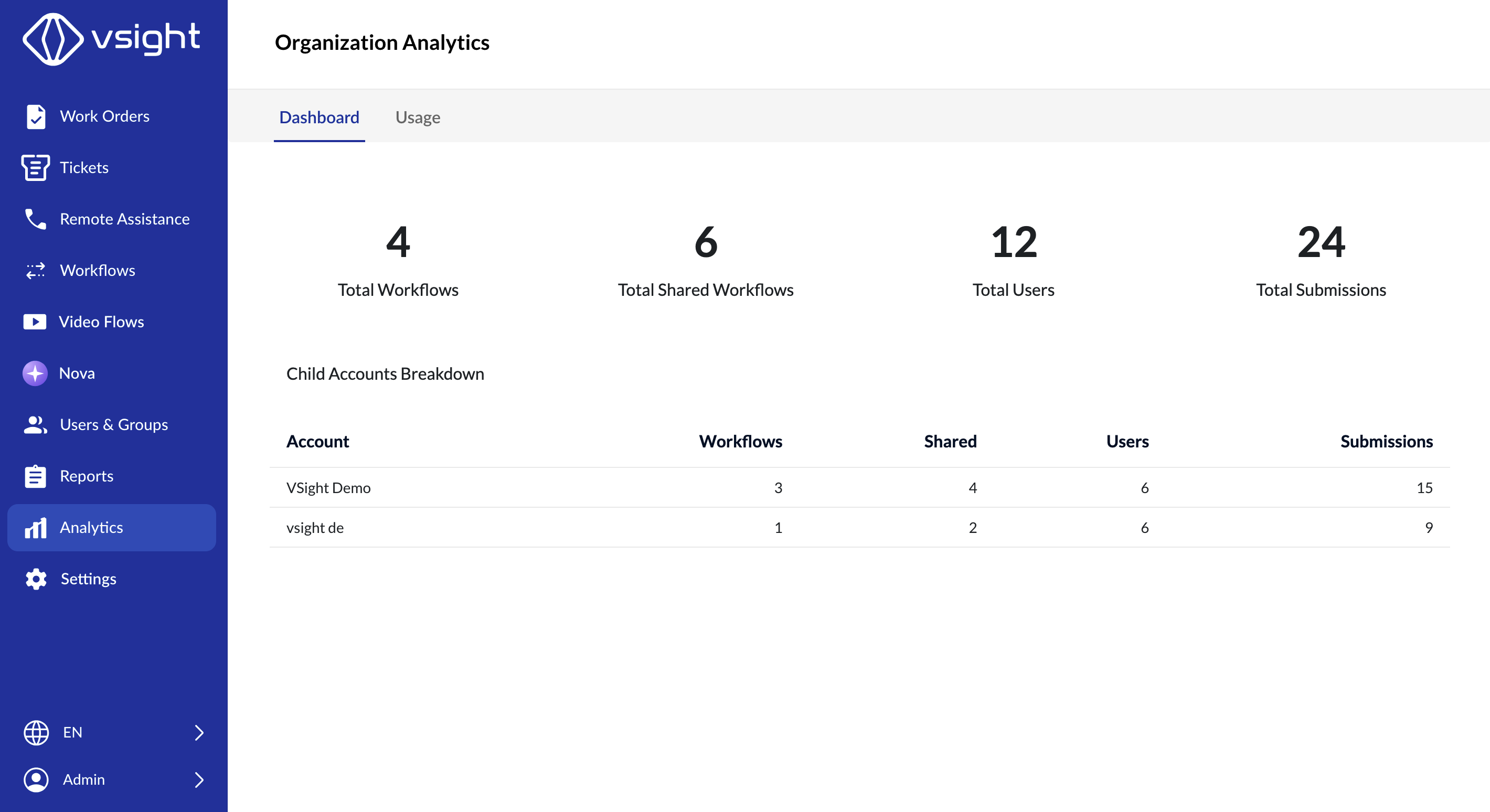
- Can monitor usage across domains (if enabled)
Child Account
- Can view shared workflows (published only)
- Can assign shared workflows to its own users
- Can generate guest links for shared workflows
- Cannot edit or modify parent workflows
1. How to Share a Workflow with Child Accounts (Parent Admin)
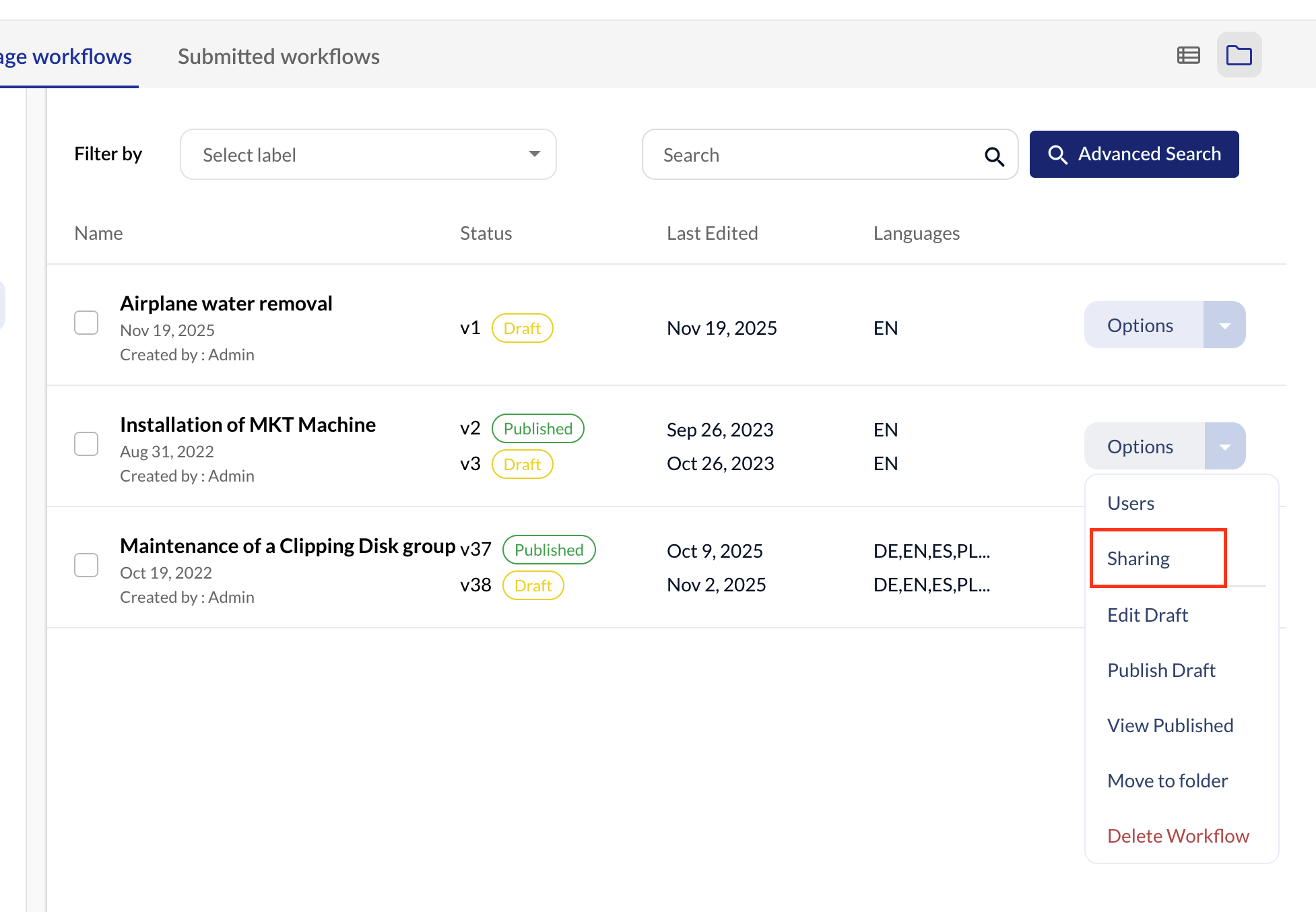
Step-by-step:
- Go to Workflows
- Click Options next to the workflow
- Select Sharing
- Choose which child accounts should access this workflow
- Click Save Sharing Settings
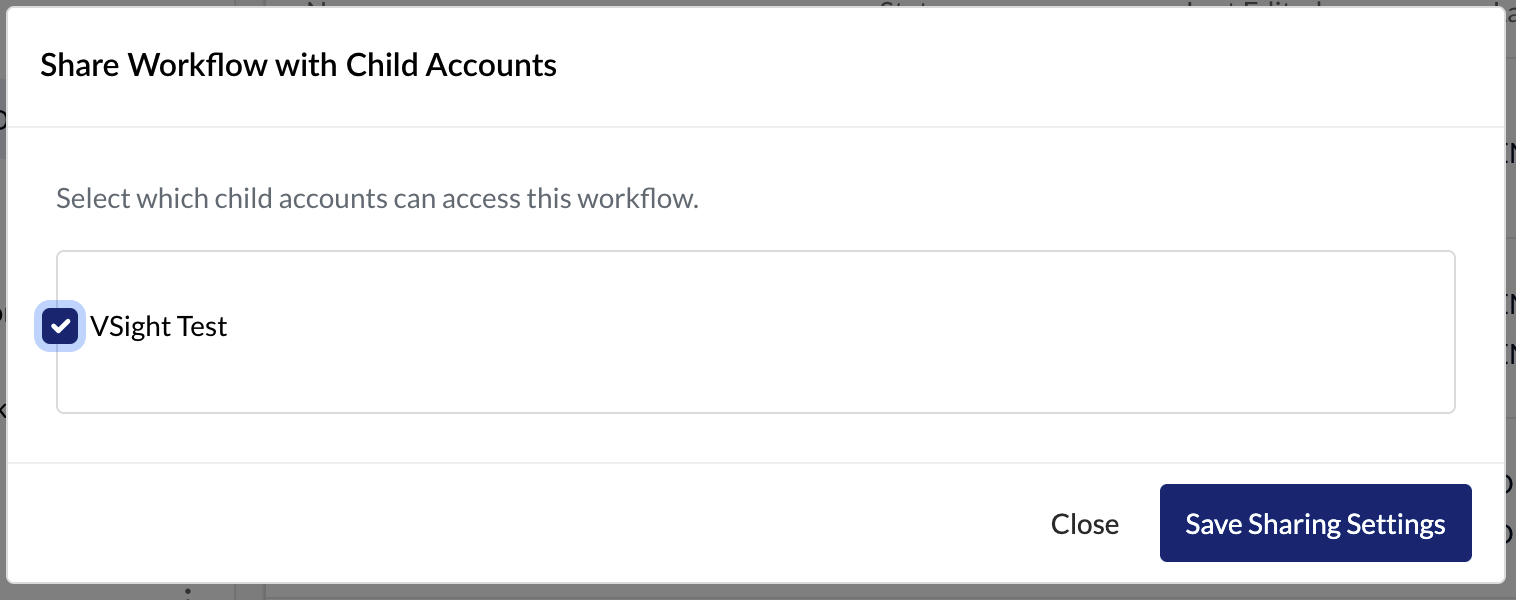
Once shared:
- The workflow becomes visible in selected child accounts.
- Only the published version is visible.
- Any future updates published by the parent are automatically reflected in all shared child accounts.
2. How Shared Workflows Appear in Child Accounts
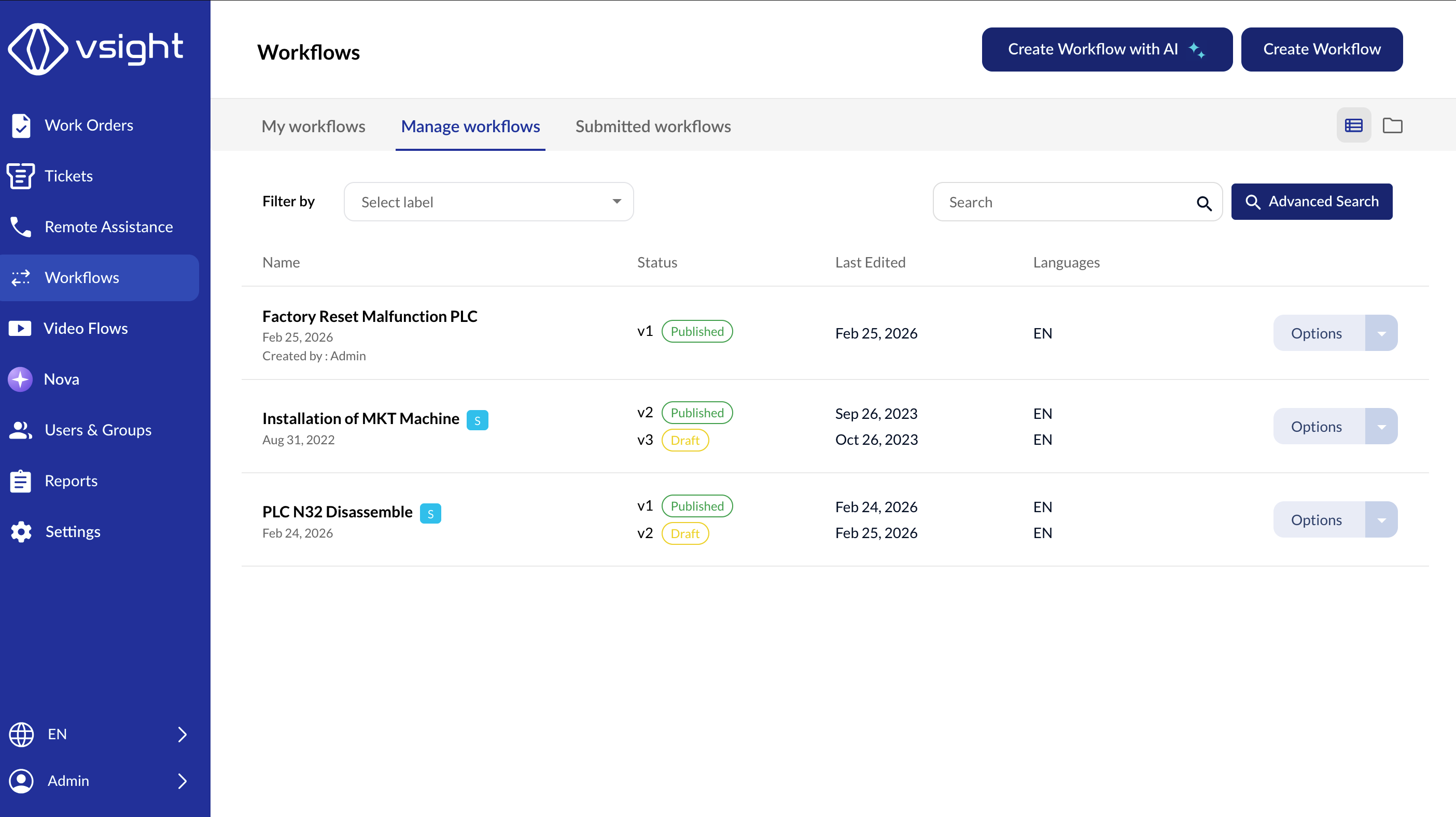
In the child account:
- Shared workflows appear in the Manage Workflows list.
- They are clearly marked as shared.
- They are read-only (cannot be edited).
3. Assigning Shared Workflows to Users (Child Admin)
Even though a workflow is shared, it is not automatically visible to all users.
The child admin must assign it.
To assign users:
- Go to Workflows
- Click Options
- Select Users
- Assign the workflow to specific users
Only assigned users will see the shared workflow in their list.
4. Guest Access for Shared Workflows (Child Account)
Child accounts can generate:
- Guest links
- QR codes
For shared workflows.
Important:
- The workflow content comes from the parent account.
- The submission/report is stored in the child account.
- If sharing is removed later, guest links will stop working.
5. What Happens When Sharing Is Removed?
If the parent removes a child from the sharing list:
- The workflow disappears from the child dashboard
- Users cannot start new submissions
- Guest links stop working
- Existing reports remain stored in the child account
- Historical data remains available for analytics
6. Data & Reporting Structure
Each child account maintains:
- Its own users
- Its own submissions
- Its own reports
- Its own analytics
The parent workflow remains consistent across domains, enabling clean aggregated reporting (if organization analytics is enabled).
7. Security & Access Control
VSight ensures:
- Complete account isolation between domains
- Role-based access control
- Child accounts cannot access other child data
- Shared workflows are read-only
- Only assigned users can see shared workflows
- Draft workflows remain private to parent
8. Usage Limits and Governance Controls
Parent Account administrators can define operational limits for each child account, including:
- Maximum number of users
- Maximum number of workflows that can be created
- Maximum number of workflow submissions
These limits allow centralized governance and cost control across multi-domain organizations.
If you would like to configure or update usage limits for a child account, please contact [email protected].
9. Key Rules to Remember
- Sharing works only with published workflows
- Child accounts cannot edit parent workflows
- User assignment is required in child accounts
- Removing sharing immediately blocks access
- Historical submissions remain intact
10. Typical Use Cases
This feature is commonly used by:
- Enterprises with multiple subsidiaries
- OEMs distributing standard procedures
- Global service networks
- Franchise-based operations
- Multi-site manufacturing groups
11. Best Practice Recommendation
We recommend:
- Keeping master SOPs in the Parent Account
- Using Child Accounts for localized execution
- Assigning workflows only to relevant roles
- Reviewing sharing settings during major updates
If you need help setting up parent–child relationships or enabling workflow sharing for your organization, please contact [email protected].