
1. Adding Widgets to a Step
✅ Click in the middle of the step box to add content.
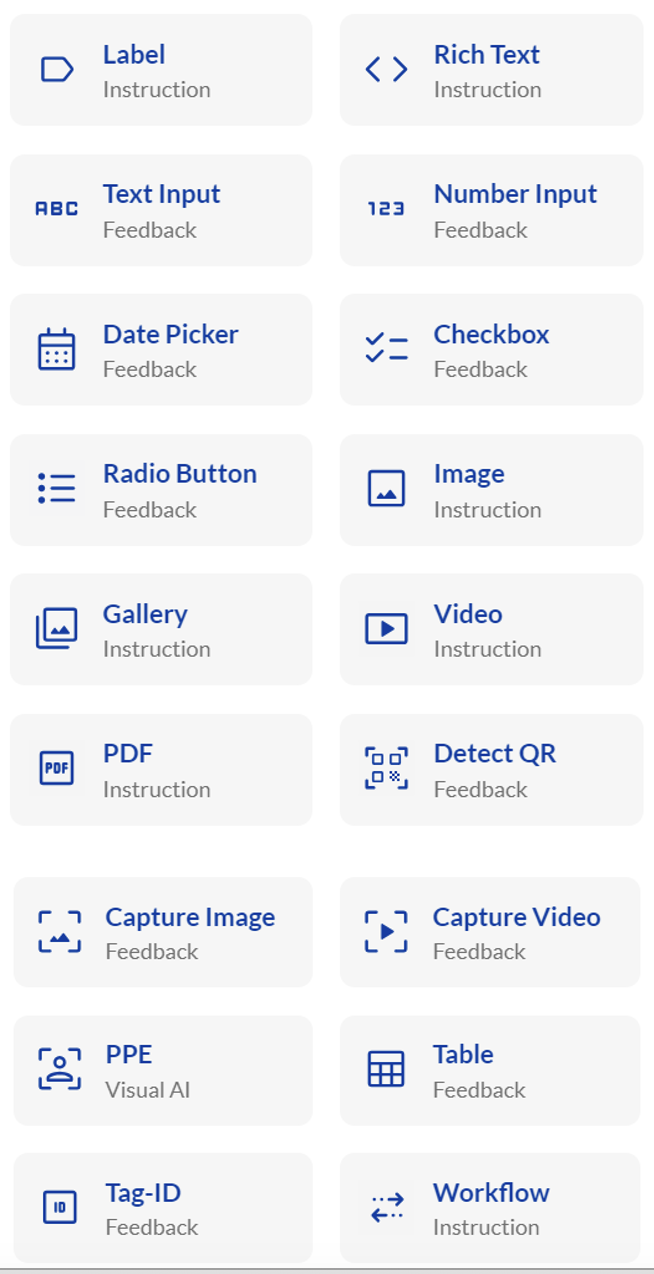
✅ The widget library will open on the right.
✅ Select a widget and configure its settings as needed.
2. Available Widgets & Features
Text & Input Fields
-
Label – Displays a text instruction on the screen.
-
Rich Text – Similar to a label but with formatting options.
-
Text Input – Allows users to enter a text response.
-
Number Input – Users can input numerical values.
-
Date Picker – Users can select a date.
Selection & Checklists
-
Checkbox – Provides a checklist where multiple selections are possible.
-
Radio Button – Offers a single-choice selection from multiple options.
Media & Documentation
-
Image Instruction – Displays an image with explanations and includes an annotation editor.
-
Gallery – Allows users to view multiple images in one step.
-
Video Instruction – Embeds a video for guidance.
-
PDF Instruction – Provides a downloadable PDF for users.
Scanning & Data Detection
-
Detect QR – Allows users to scan QR codes or barcodes.
-
The system reads and displays the value in the report.
-
Can compare the scanned value to a predetermined reference.
-
Custom database integration available for automation (contact VSight Support).
-
-
Capture Image – Enables users to take, edit, and upload images.
-
Capture Video – Allows users to record and upload videos.
-
Detect PPE – Identifies personal protective equipment (PPE), such as helmets, via image recognition.
Advanced Widgets
-
Table – Displays multiple widgets within a structured table format, useful for reporting.
-
Tag ID – Collects a unique key input (e.g., serial number).
-
Appears in reports and approval emails.
-
Optional database integration for automated field pre-filling.
-
-
Workflow – Embeds a previously created workflow into a step, avoiding duplication.
By leveraging widgets, you can create dynamic and interactive workflows that enhance the user experience in VSight Workflow.
📌 Need More Help? – See further information at VSight Help Center or contact support for assistance.