
1. Using Sections in Workflows
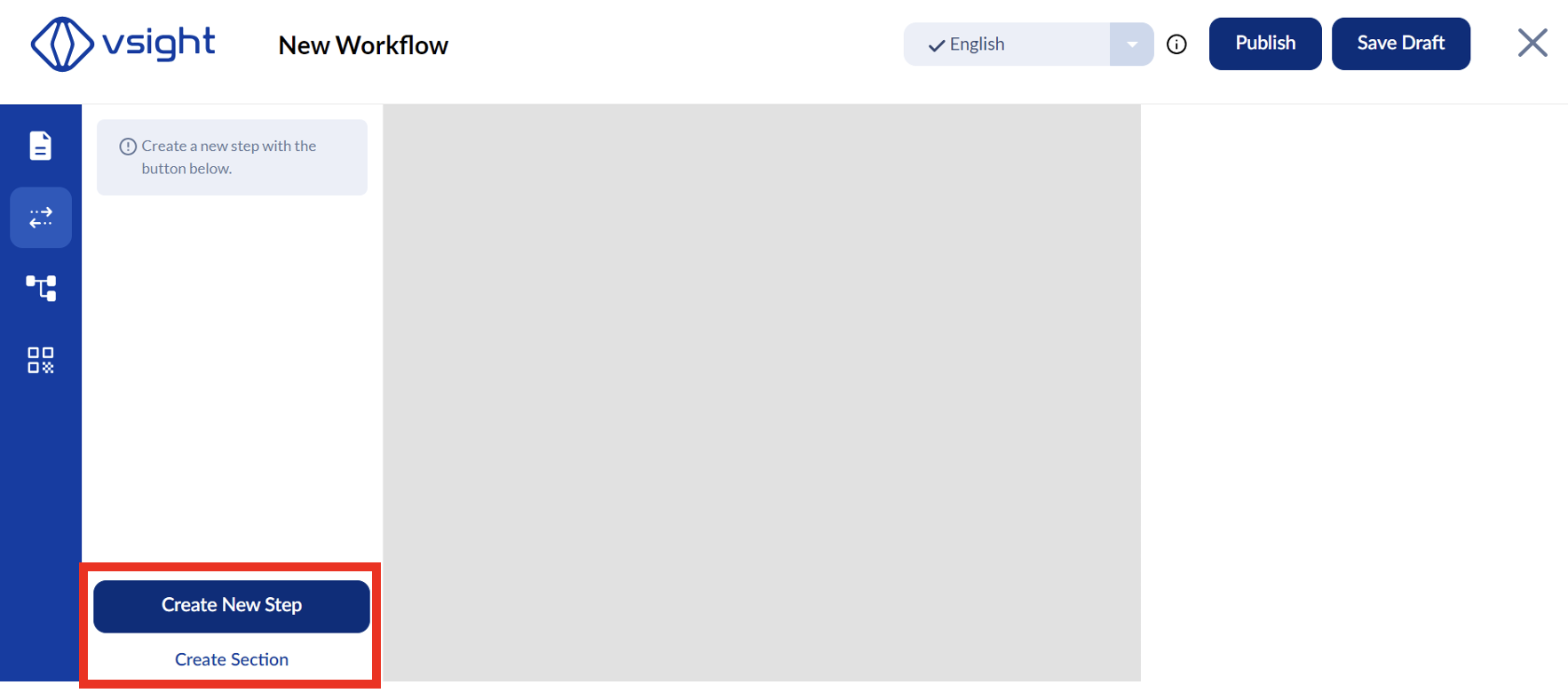
✅ Sections help divide workflows into structured parts, especially for complex workflows with multiple topics.
✅ The use of sections is optional—you can also work only with steps.
2. Creating and Managing Steps
2.1 Choosing a Step Layout
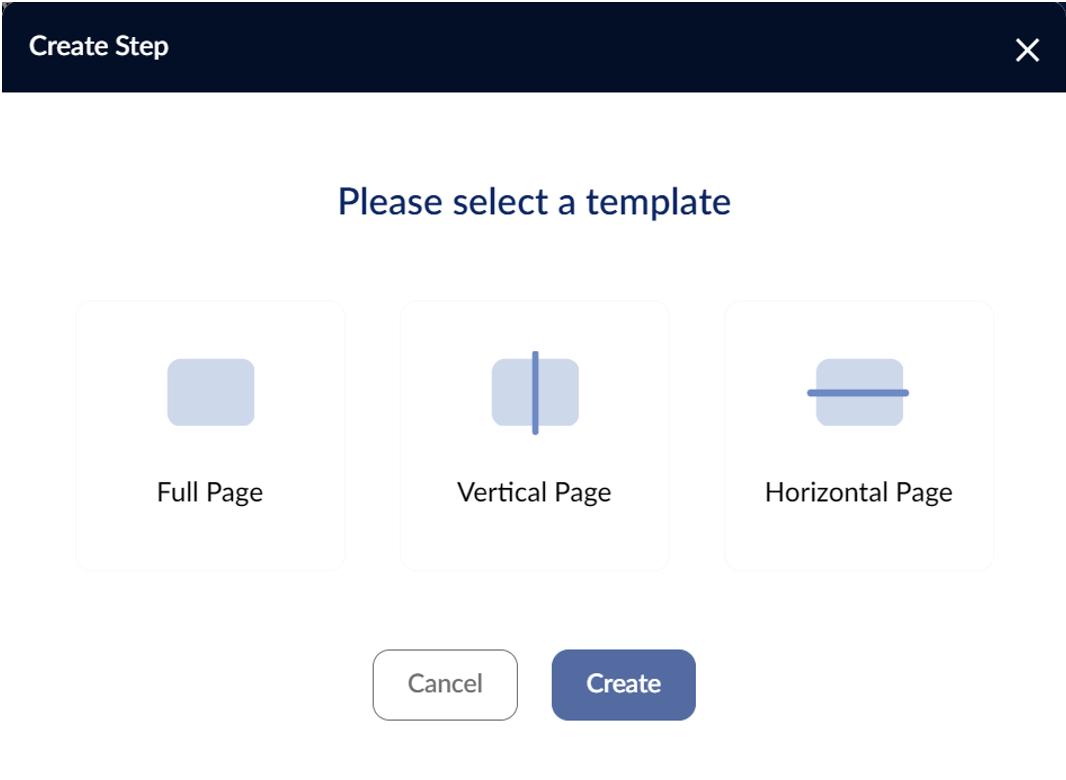
✅ When creating each step, select a layout that fits the workflow.
✅ Consider the devices users will be using (tablet, smartphone, smart glasses) for the most convenient layout.
✅ You can adjust the layout later if needed.
2.2 Renaming Steps
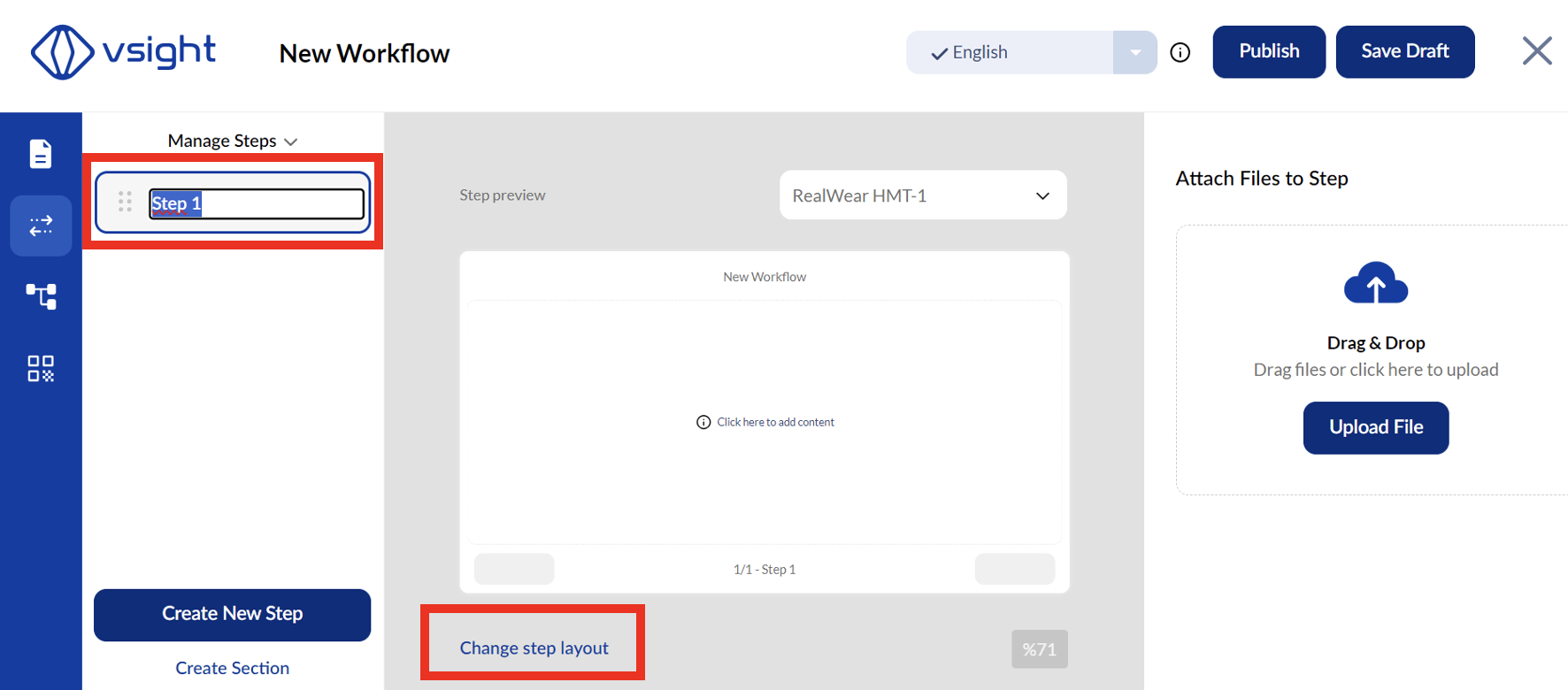
✅ Steps can be renamed immediately after creation or later.
2.3 Adding Files to Steps
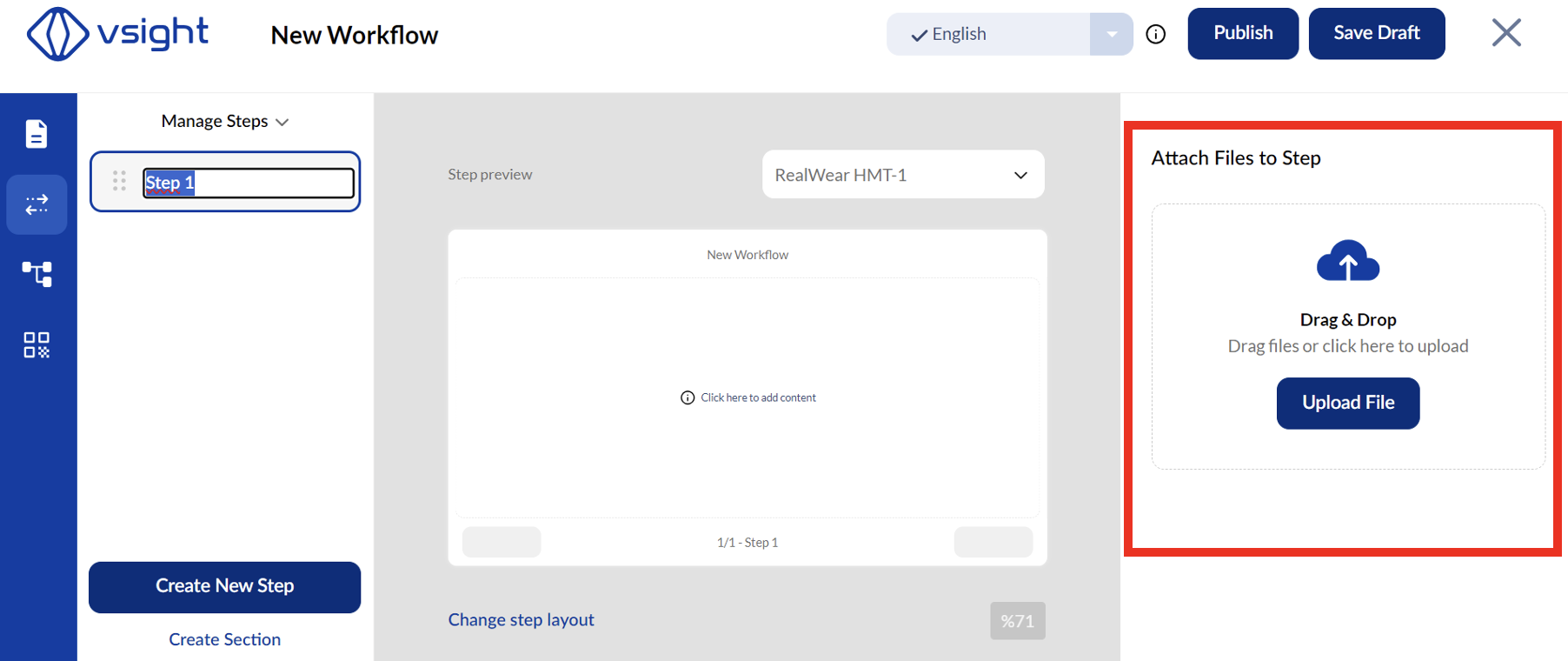
✅ In the right panel of the window, you can attach images or PDFs to each step for additional reference.
2.4 Moving Steps Within the Workflow
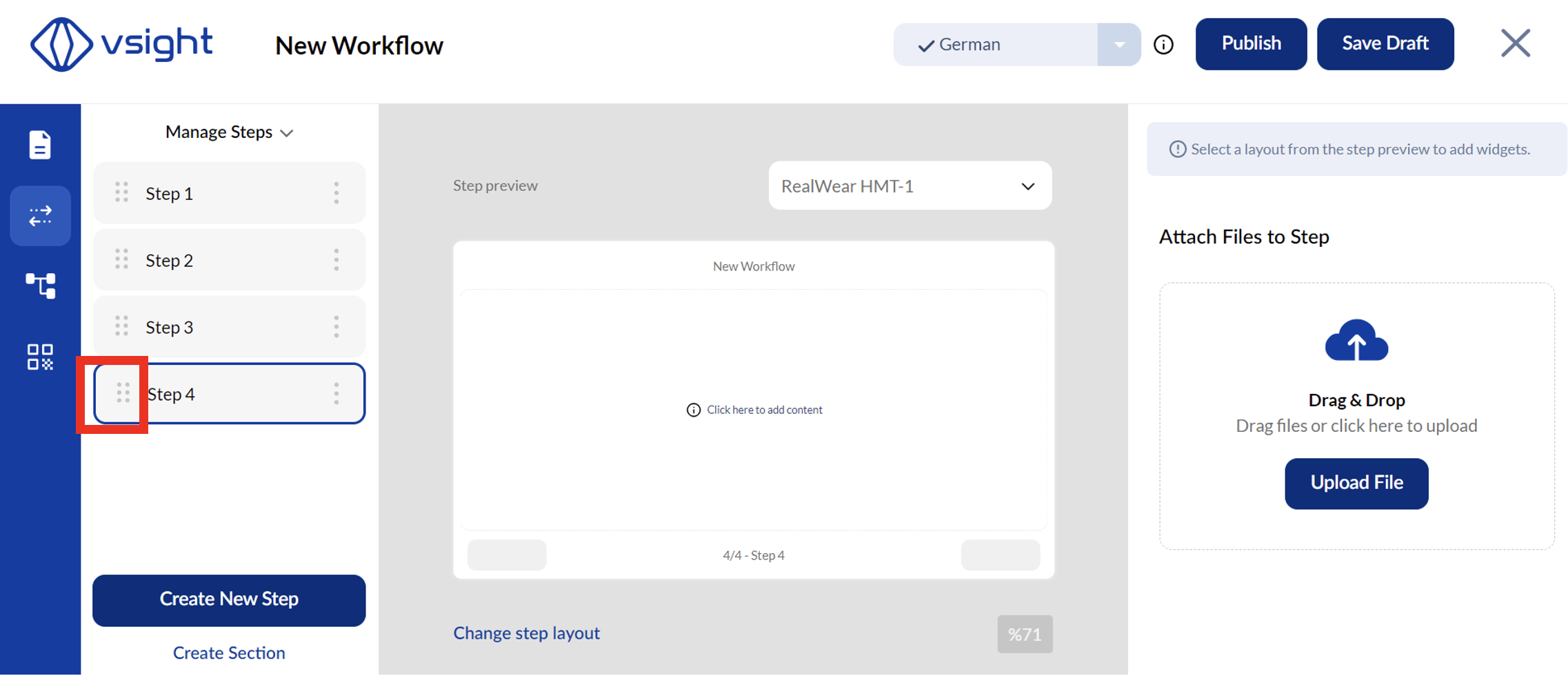
✅ Individual steps can be moved to another location using the 6 dots to the left of the step name.
✅ Hold the step with the left mouse button and move it to another place.
⚠️ Important: After activating connections, moving steps is no longer possible to maintain the logical sequence of the workflow.
2.5 Editing, Cloning, Duplicating, and Moving Steps
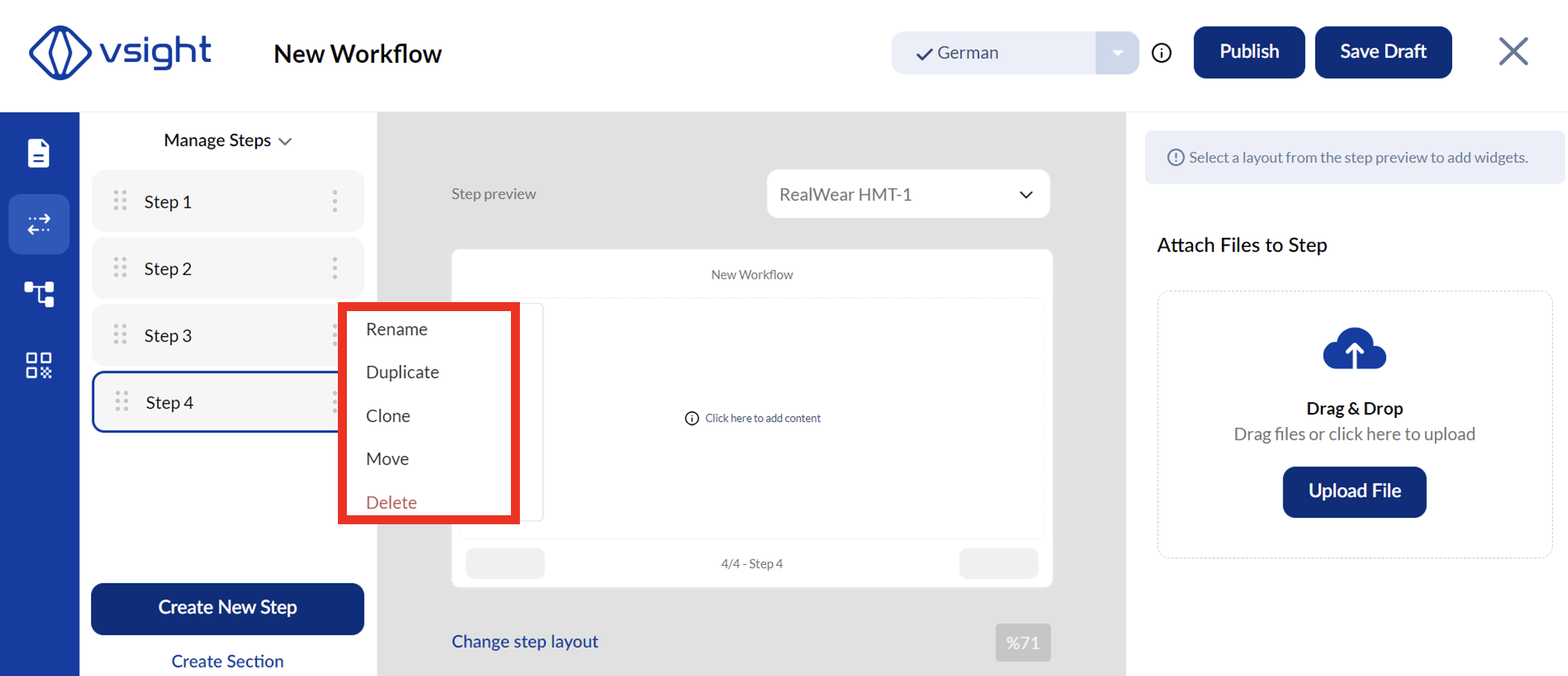
✅ A single step can be edited by clicking on the 3 dots to the right of the step name. Here, you can:
-
Rename Step – Change the step name.
-
Duplicate Step – Copy the step within the same workflow.
-
Clone Step – Copy the step and place it in another workflow.
-
Move Step – Transfer the step to another workflow.
-
Delete Step – Remove the step permanently.
By structuring workflows with steps and sections, VSight Workflow enables better organization and usability for users across different devices.
📌 Need More Help? – See further information at VSight Help Center or contact support for assistance.