
What is Session Export?
Session export in VSight Remote Assistance enables users to get detailed records of past sessions, including chat logs, shared files, snapshots, and video recordings. These reports help teams document activities, troubleshoot issues, and maintain compliance.
Key Features of Session Export
✅ Automated Session Reports – Receive a summary of each session, including chat history and shared content.
✅ Snapshot & File Archives – Store session-related images and documents for future reference.
✅ Session Recording Storage – Access and download video recordings for review and training.
✅ CSV Export – Export session history data in CSV format for deeper analysis.
How to Get Session Export Directly After Session
1️⃣ Leave the session - after leaving the session, a window for session export will appear automatically.
2️⃣ Add Details - Rename the export and enter email recipients.
3️⃣ Send the Export - Click Send to receive the export.
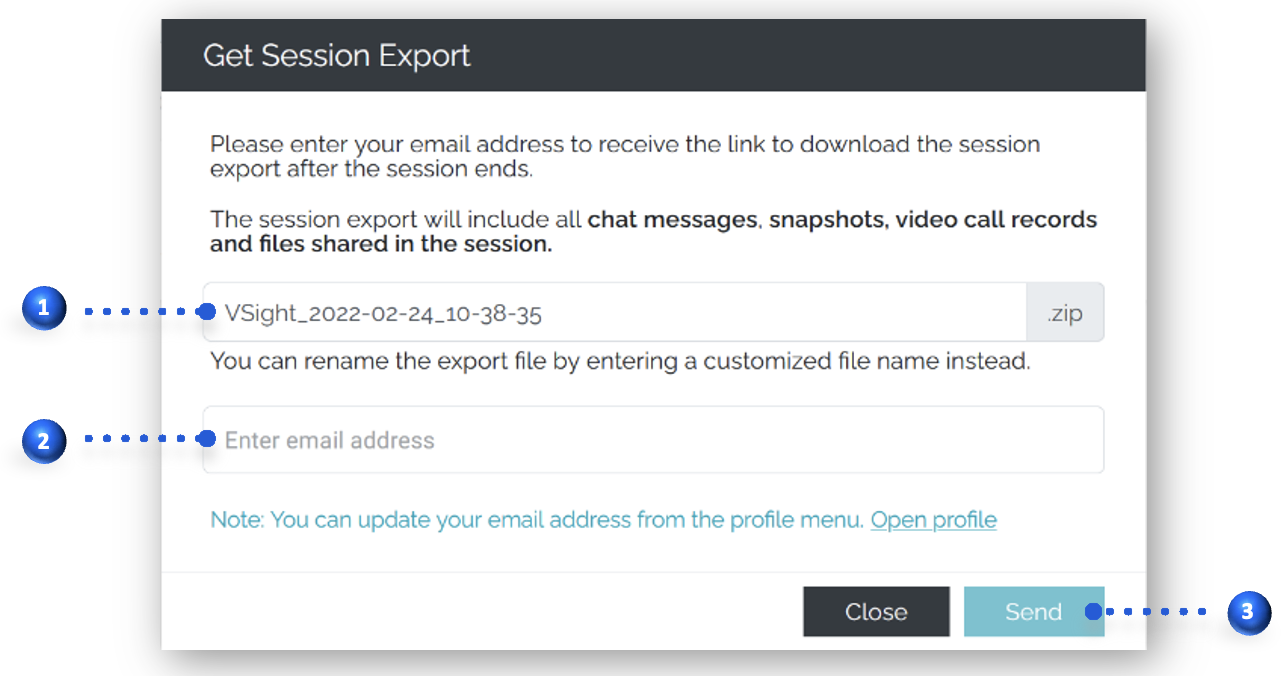
📤 Instant Download Option – We can enable a setting for you to receive a download screen immediately after a session, allowing you to select exactly what you want to download on the spot.
How to Access Session Reports
You can access sessions reports even after the session is over. The usual storage period is 30 days but it can be adjusted to your needs.
For Admins
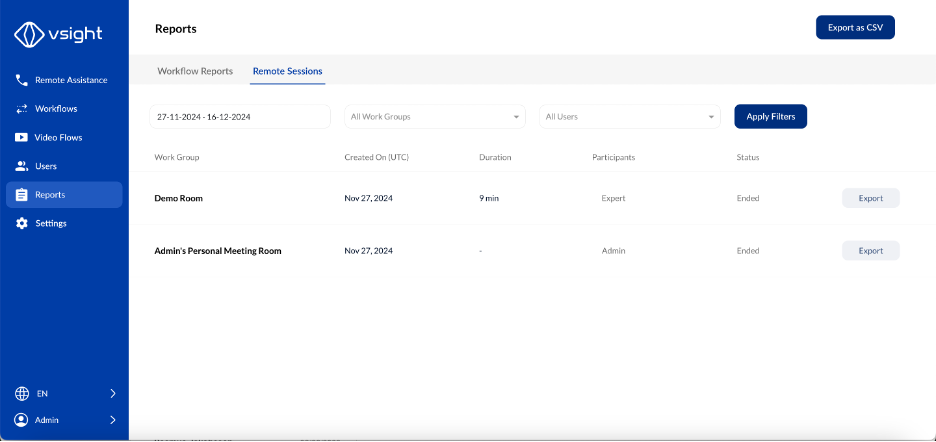
1️⃣ Go to Reports Tab – Navigate to the reports tab and select Remote Sessions.
2️⃣ Select a Session – Choose a past session from the list or filter by date, users and work groups.
3️⃣ View Details – Click to see chat logs, shared files, and snapshots.
4️⃣ Download Report – Click the Export button to save the session summary.
For Experts and Subscribers
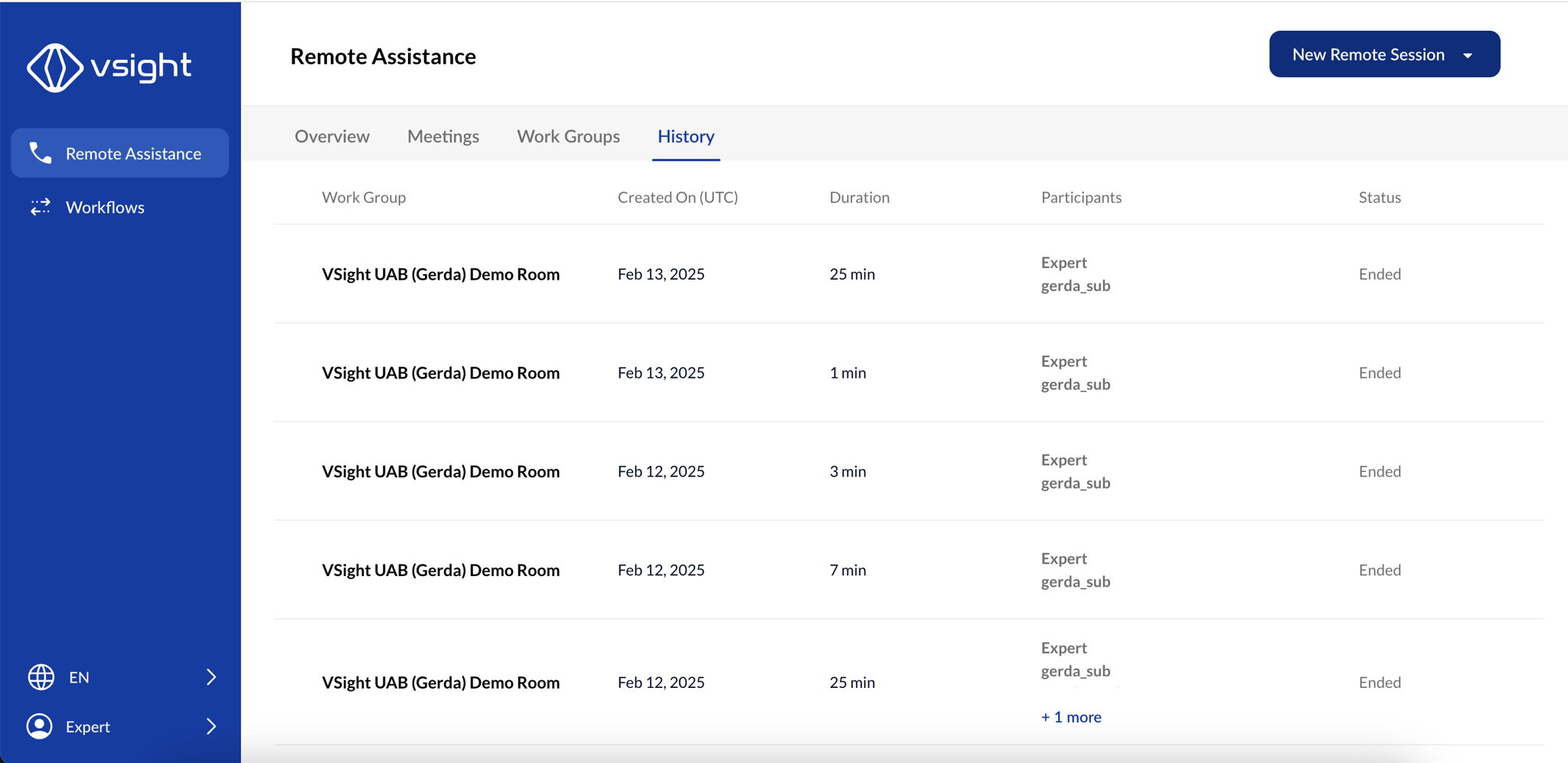
1️⃣ Go to History Tab – Navigate to the History tab
2️⃣ Select a Session – Choose a past session from the list.
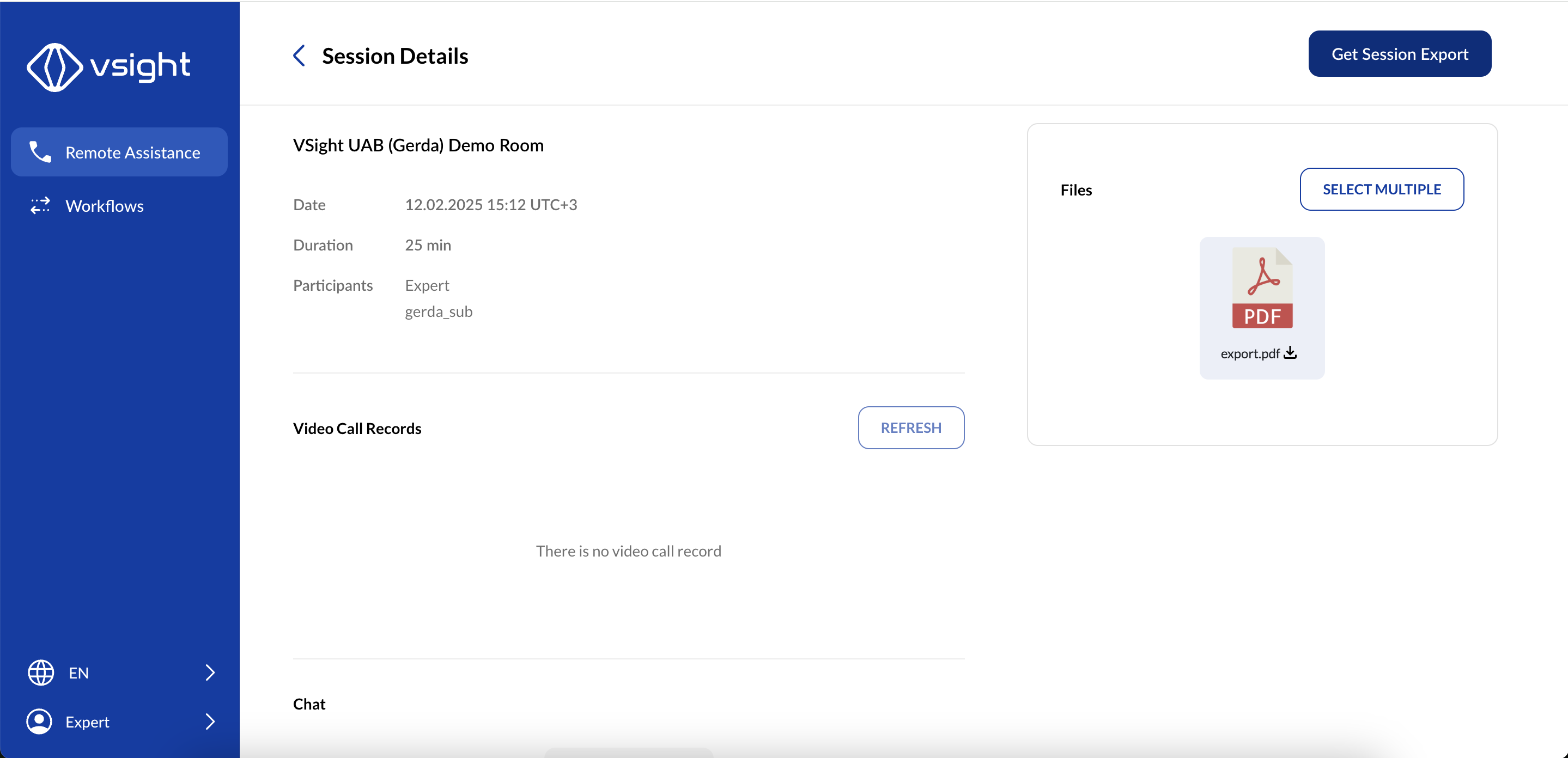
3️⃣ View Details – Click to see chat logs, shared files, and snapshots.
4️⃣ Download Report – Click the Get Session Export button to save the session summary.
Managing Session Recordings
🔹 Who Can Access Recordings? – Only ULTIMATE license holders can access and download session videos.
🔹 Unlimited Storage – Store and manage session recordings within the admin panel.
🔹 Auto-Delete Policy – Old recordings are removed automatically once storage limits are reached.
✅ Tip: For a smoother workflow, integrate session export with your ticketing system, eliminating the need to search for information in multiple places.
📌 Need More Help? – See further information at VSight Help Center or contact support for assistance.