
1. Viewing Workflow Reports
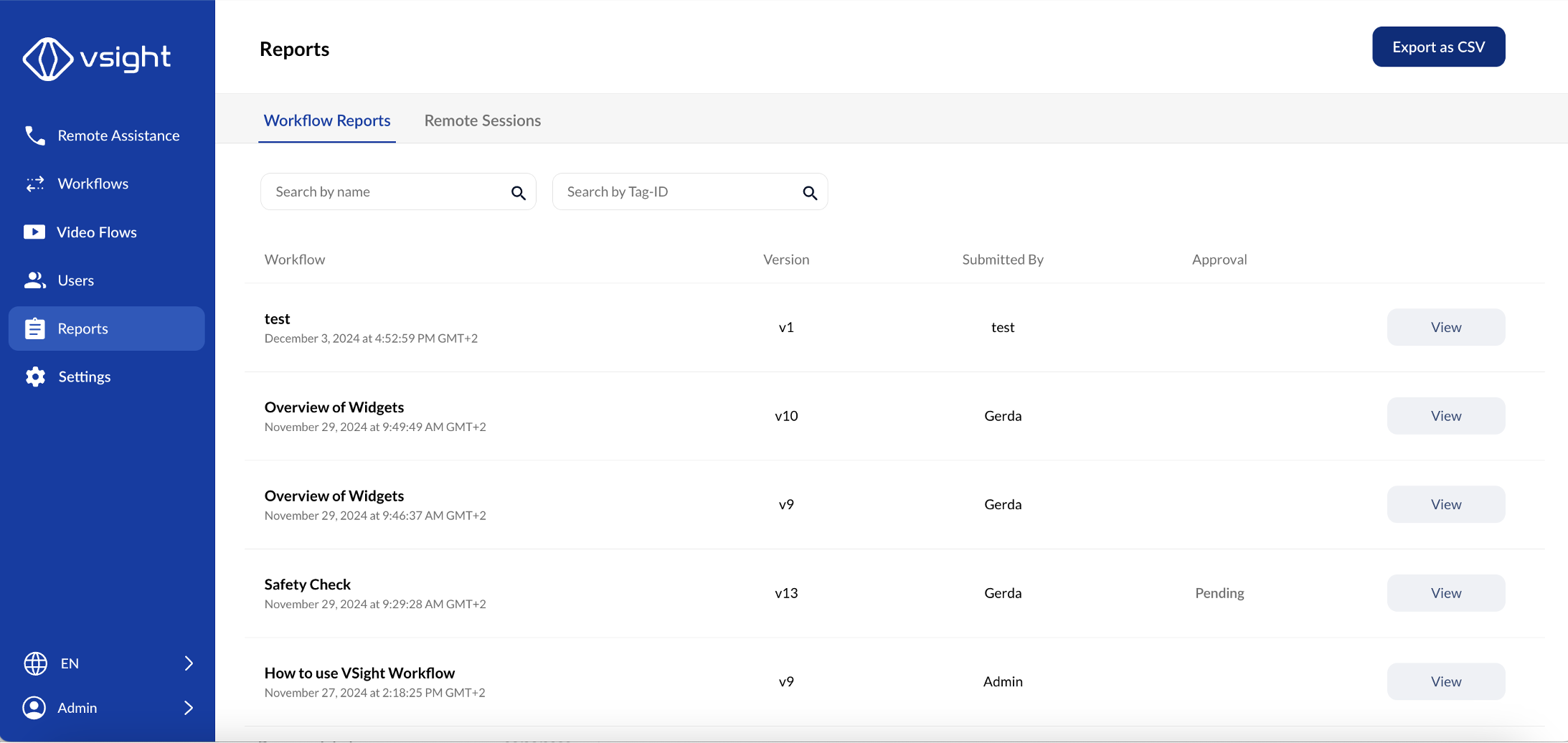
✅ The Reports section displays a list of all submitted workflows.
✅ Each report can be viewed individually using the button on the right-hand side.
✅ You can search for reports by entering the workflow name or Tag ID.
2. Submitted Workflows – All Users
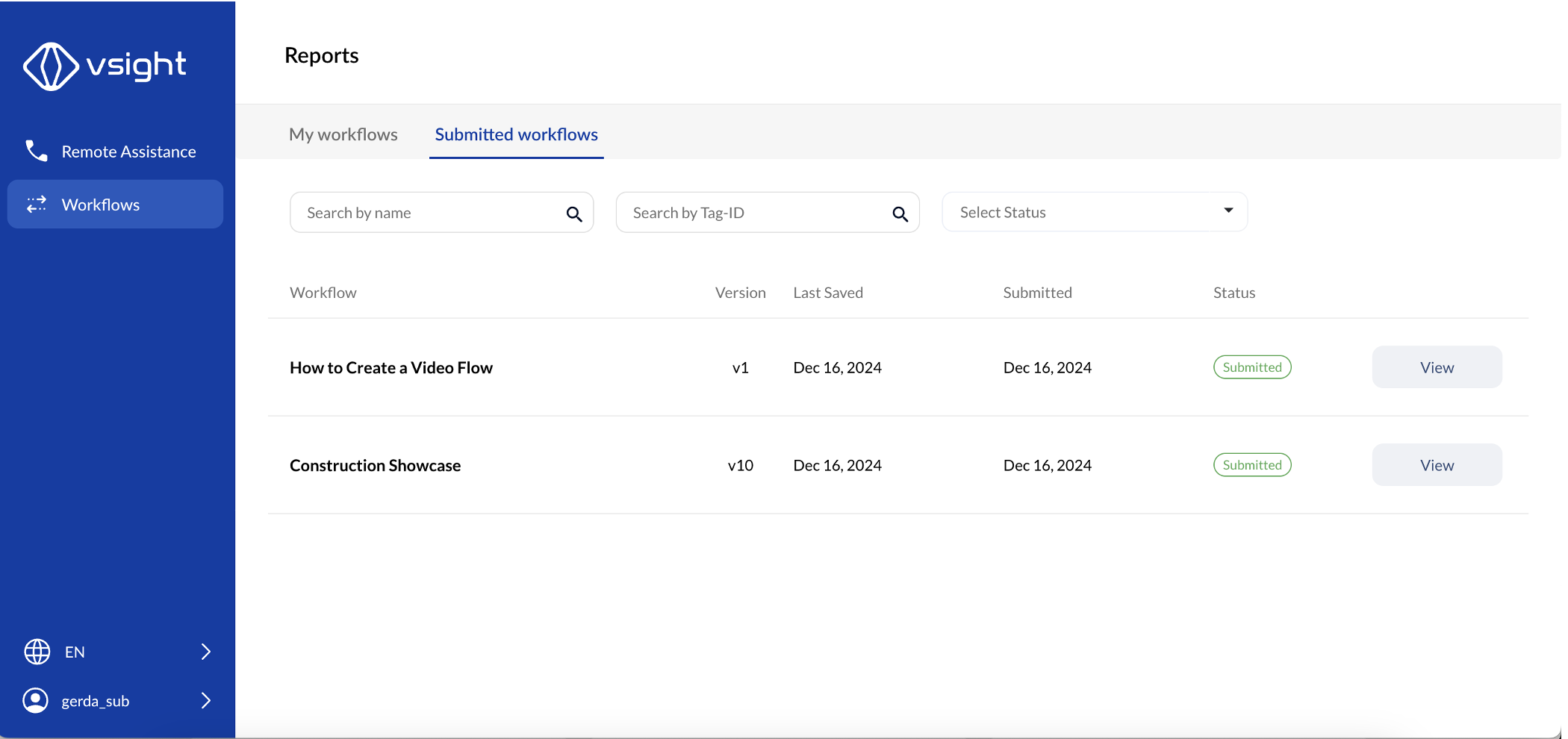
✅ Under “Submitted Workflows”, you will find a list of workflows completed by you.
✅ You can search for workflows by:
-
Workflow Name
-
Tag-ID
-
Workflow Status
3. Exporting Workflow Reports
✅ In the upper right area, you can export the entire report list as a CSV file (compatible with Excel).
✅ Single reports can be downloaded in CSV or PDF format for documentation.
4. Integration with External Systems
✅ VSight offers the possibility of integrating reports into existing systems, such as ERP, CRM, or ticketing systems.
✅ This allows reports to be linked directly to specific elements in your system for seamless data management.
✅ For integration inquiries, please contact VSight Support.
Using workflow reports in VSight Workflow ensures easy tracking, data management, and seamless export options for further analysis.
📌 Need More Help? – See further information at VSight Help Center or contact support for assistance.