
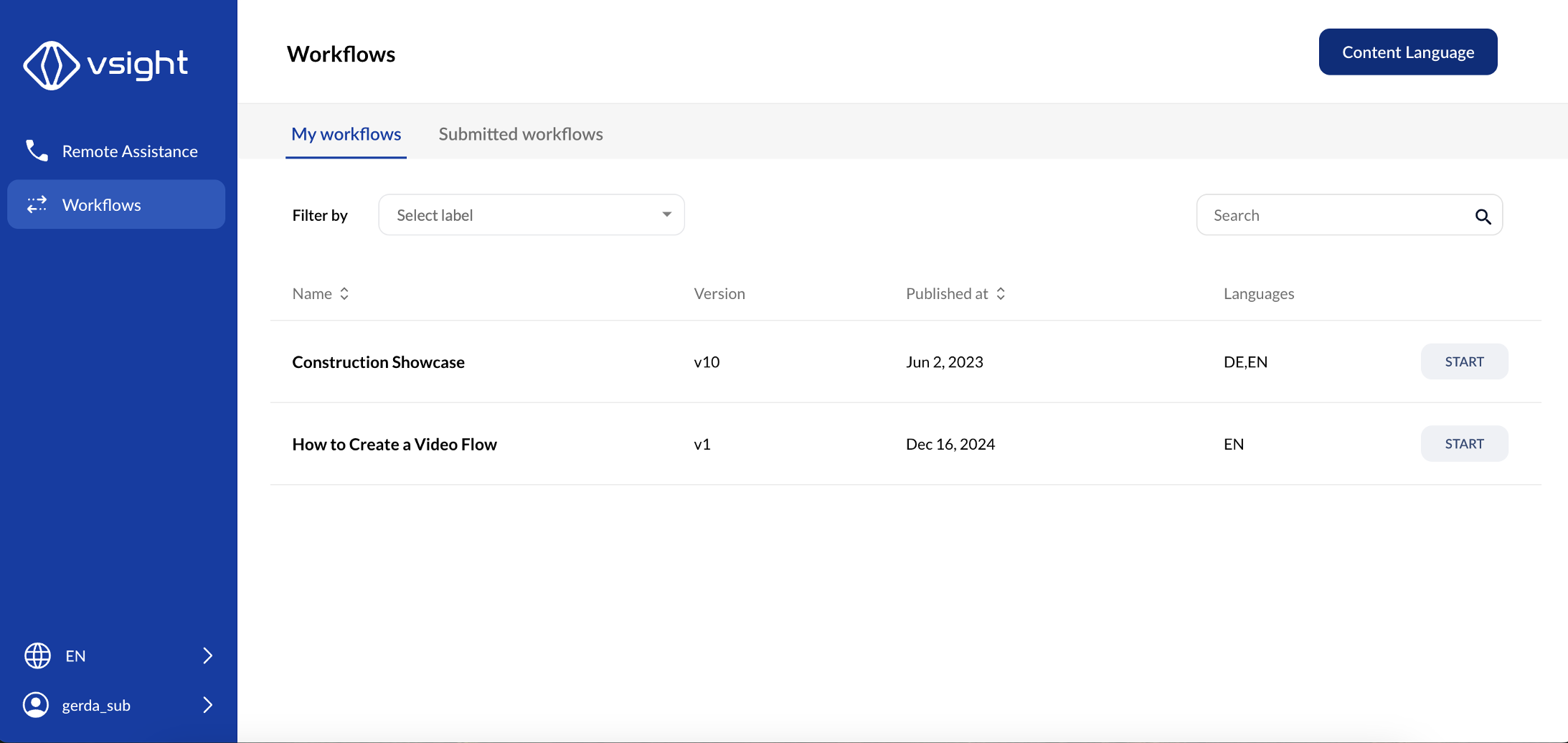
1. My Workflows – All Users
✅ “My Workflows” displays workflows assigned to you for completion.
✅ If the list is too long, you can filter workflows by selecting a label or using the search tab on the right side.
2. Submitted Workflows – All Users
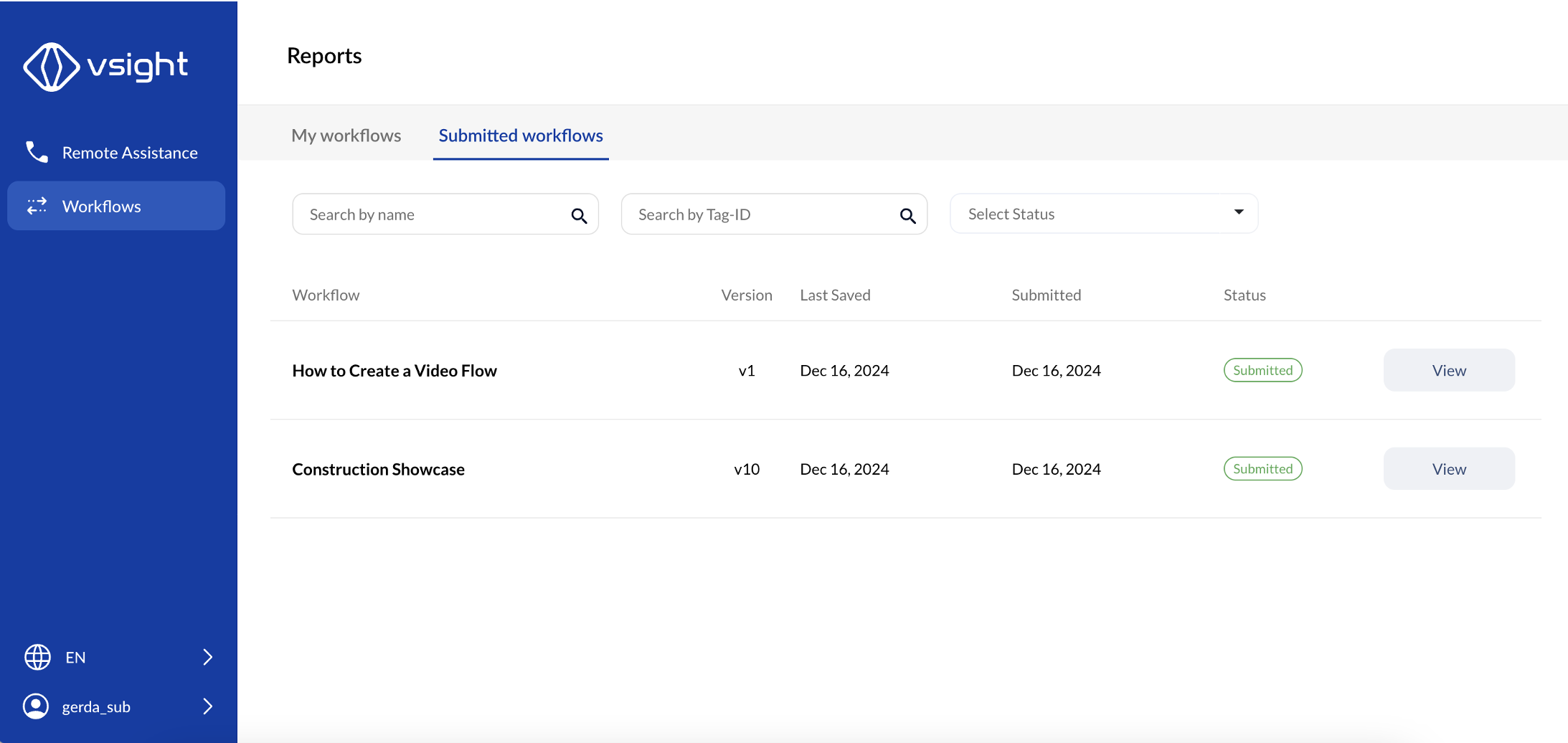
✅ Under “Submitted Workflows”, you will find a list of workflows completed by you.
✅ You can search for workflows by:
-
Workflow Name
-
Tag-ID
-
Workflow Status
3. Manage Workflows – Experts and Admins
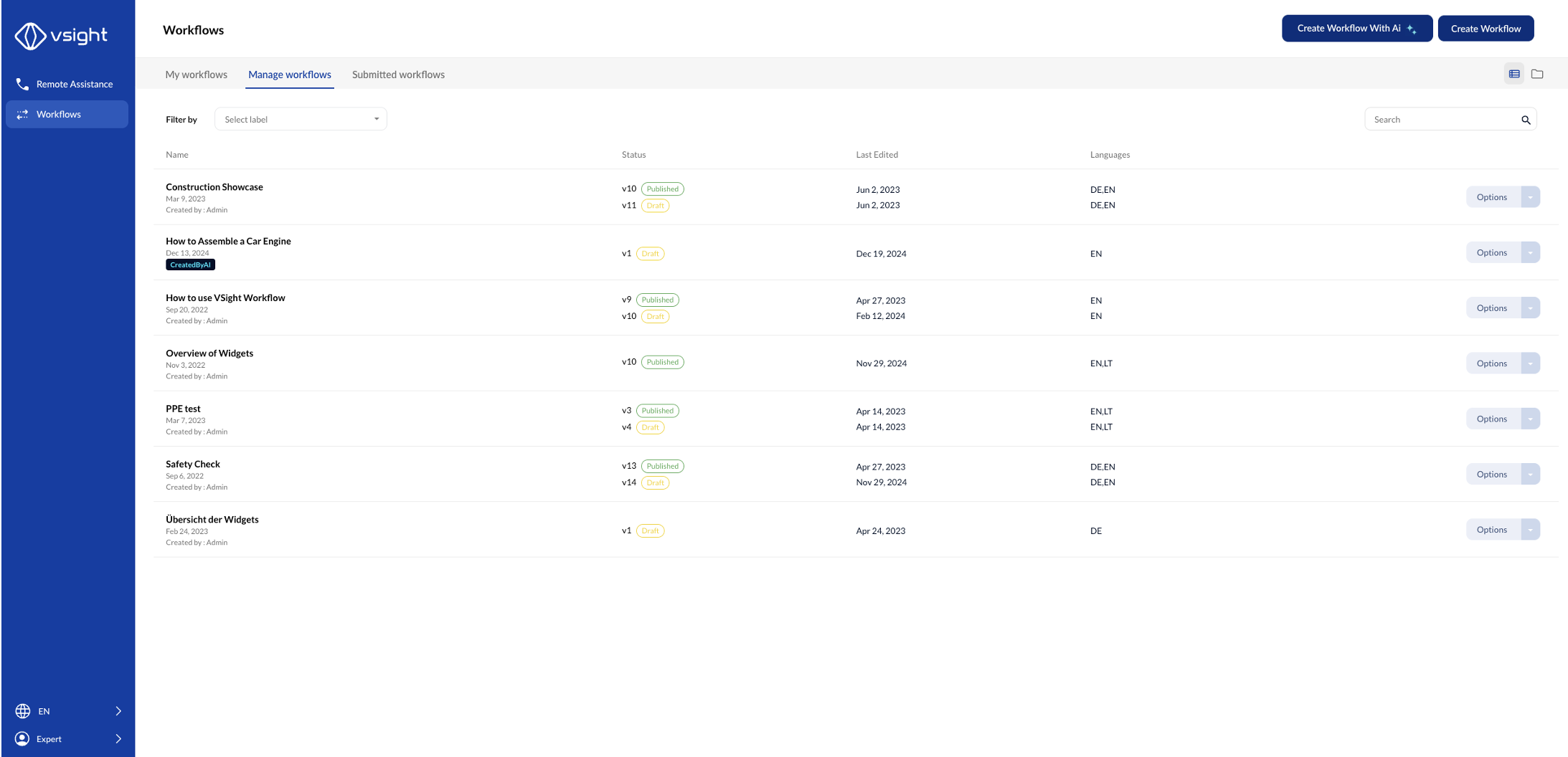
✅ Both experts and admins can create workflows.
✅ After logging in, go to the “Workflows” tab.
✅ There, you will find an additional section called “Manage Workflows”, where you can create and edit workflows.
Overview of Main Page for Mobiles (iOS and Android) and Smart Glasses
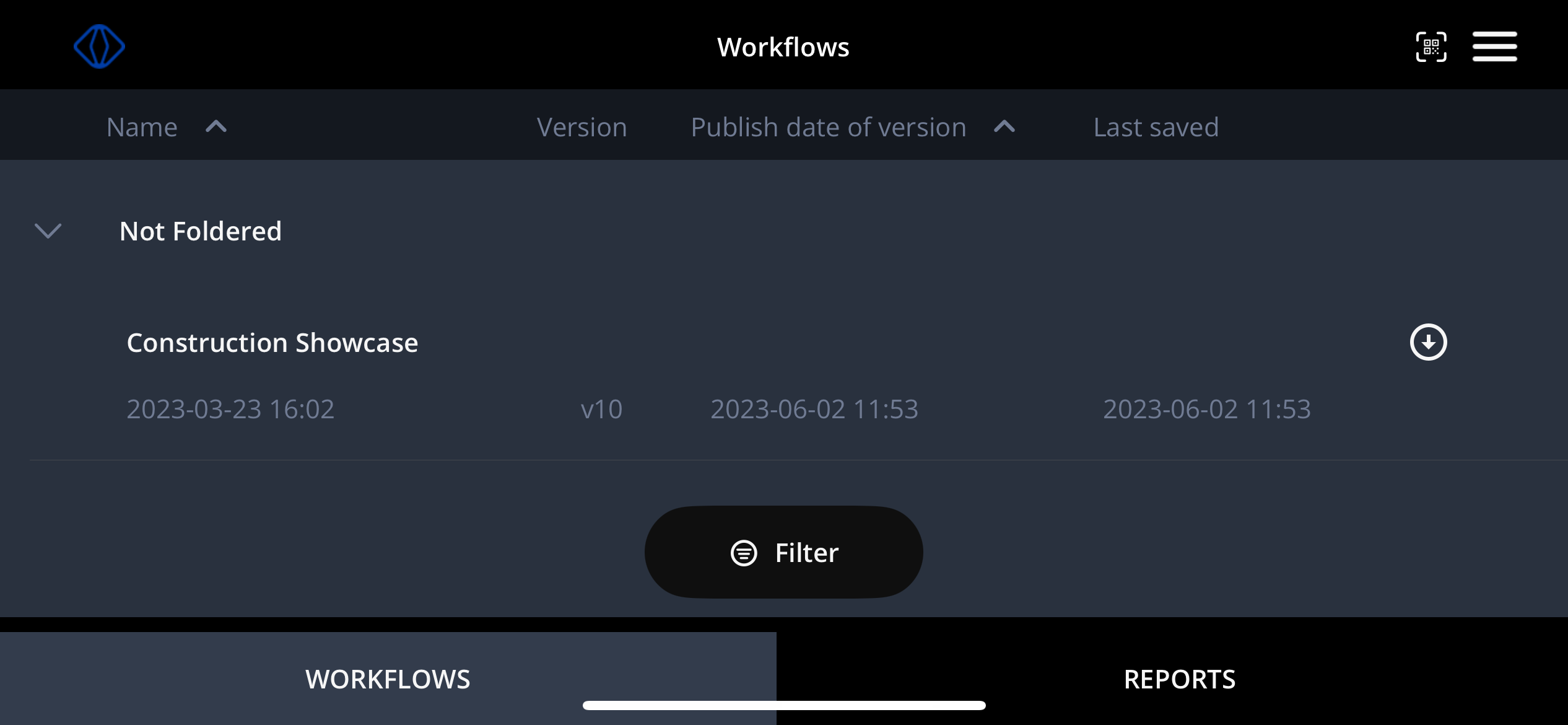
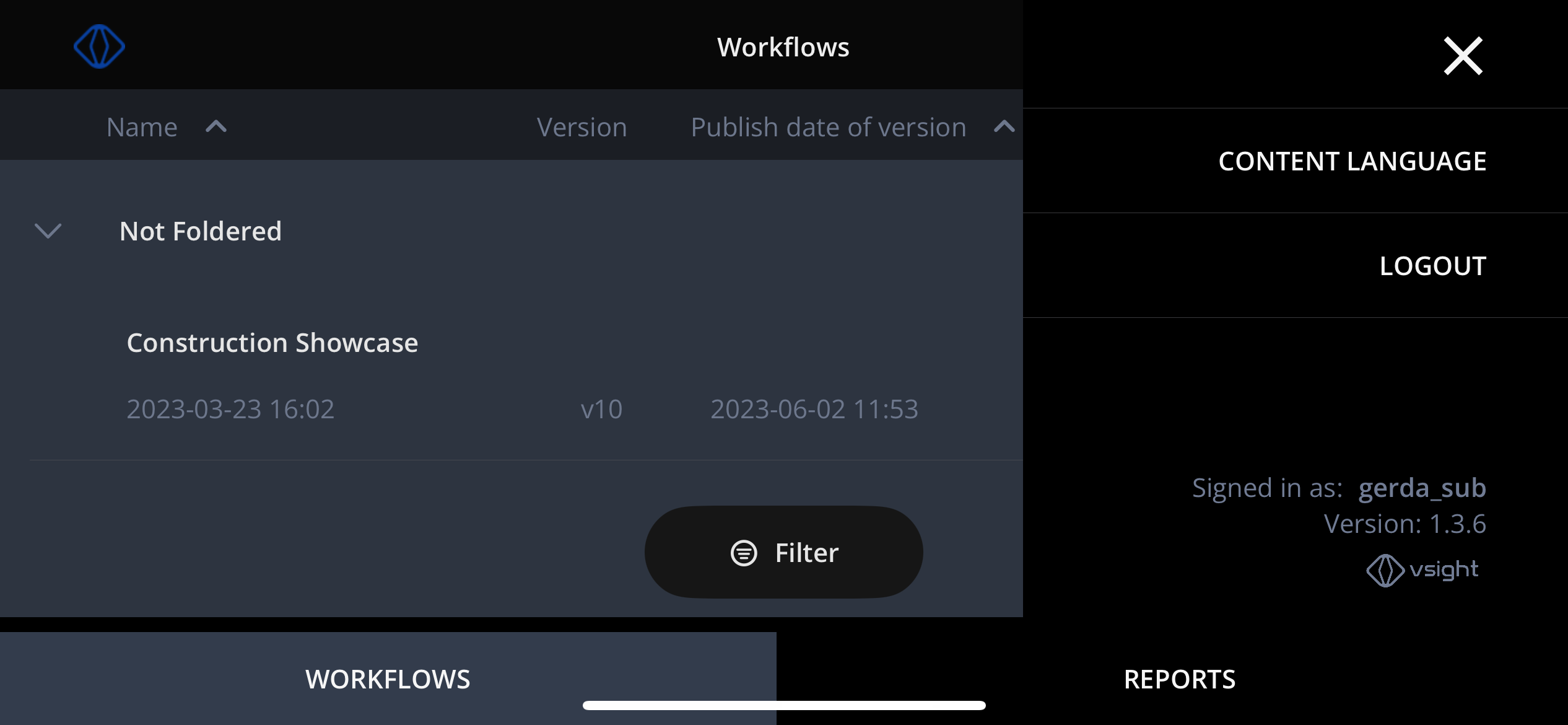
✅ The main menu consists of two sections: workflows and reports.
✅ Workflows gives an overview of all assigned workflows.
✅ Reports allow to see information on already submitted workflows by the user.
✅ QR Code button in the upper right corner allows to open workflows with an assigned QR code.
✅ Use Filter function to find workflows by label.
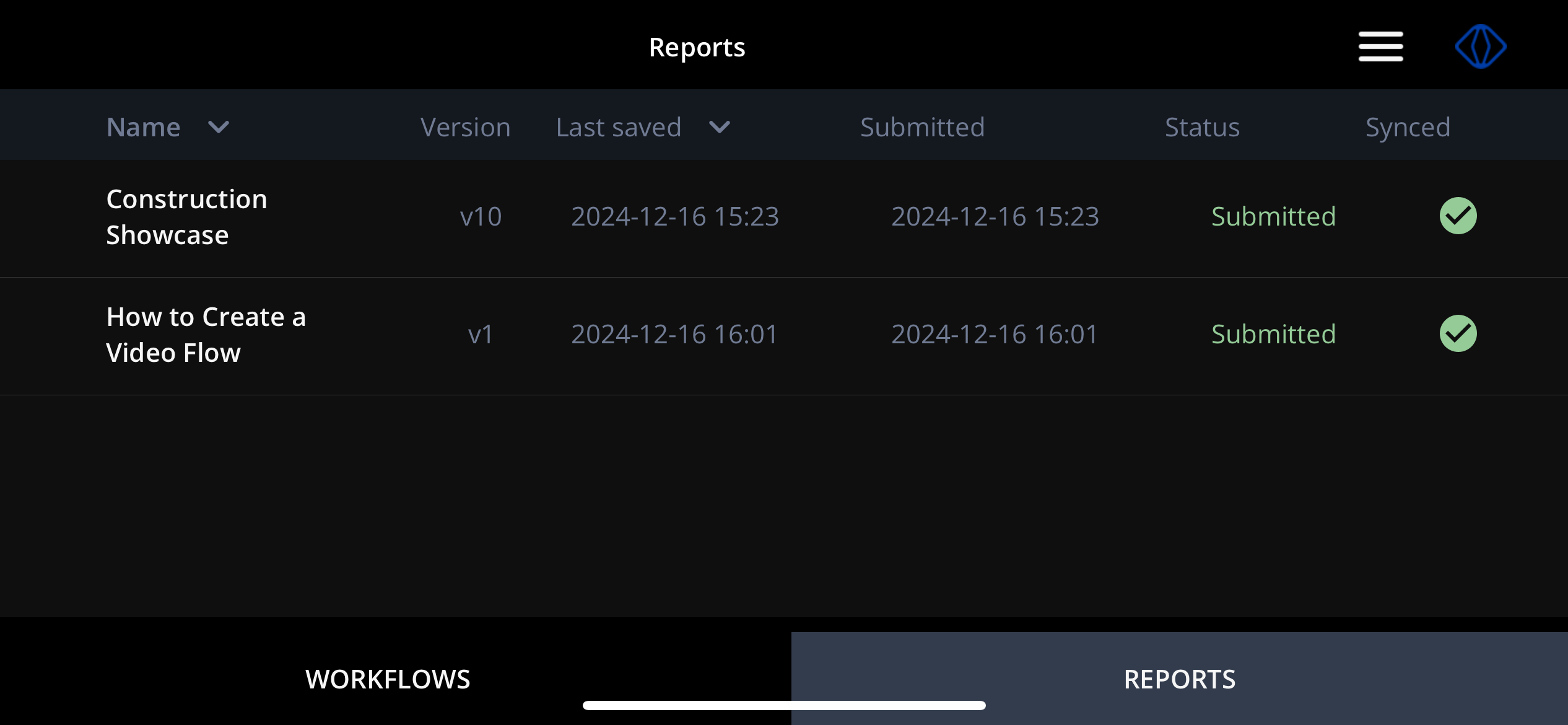
✅ With a click on the side menu, users can choose content language for their workflows if multiple languages are available, log out or see app information.
The main page of VSight Workflow provides a structured way to access, manage, and report on workflows, ensuring an efficient and user-friendly experience.
📌 Need More Help? – See further information at VSight Help Center or contact support for assistance.