
VSight Remote Session Collaboration Features
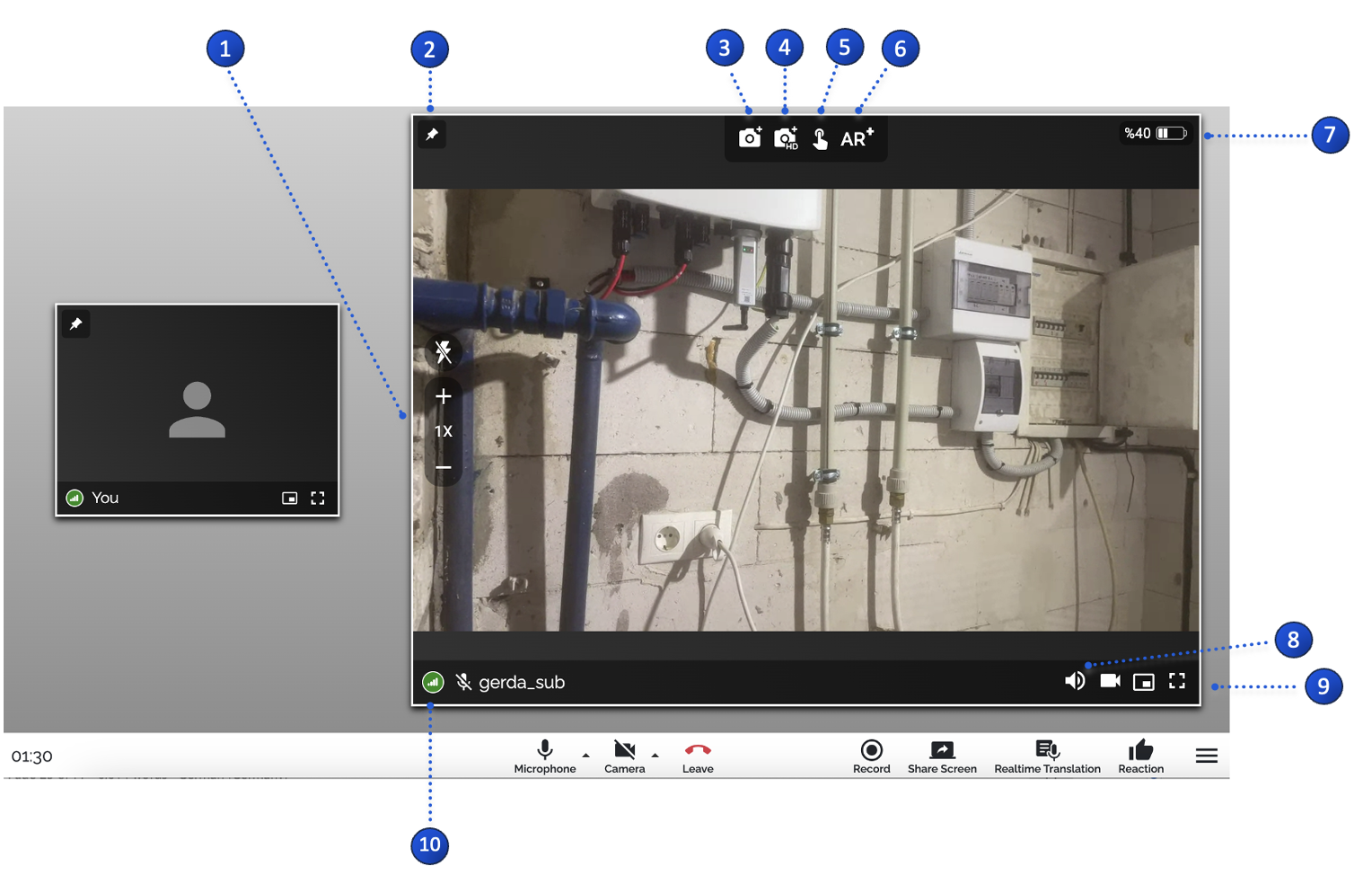
1️⃣ Zoom & Flash
-
Control the zoom of the mobile device to take a closer look or get a better overview (up to 4x zoom).
-
Click on the flash icon to activate the flash and increase illumination.
2️⃣ Pin a Window
-
Click on the pin needle of any window to fix it in the center and control the view for all users.
-
Other video streams are displayed on the left side of the screen.
3️⃣ Snapshot & 4️⃣ HD Picture
-
Snapshot: Captures a still image (720x1280 resolution) for collaboration.
-
HD Picture: Takes a high-resolution image (quality depends on device camera, not internet connection).
5️⃣ Annotations
- The hand symbol represents the annotation mode, allowing users to draw and highlight areas.
6️⃣ AR+ Mode
-
Click the AR+ icon to initiate Augmented Reality mode.
-
The software scans and recognizes surfaces for placing 3D annotations during the live stream.
7️⃣ Battery Status
- Monitor the battery life of the mobile device during the session.
8️⃣ Audio/Video Transmission Control
- Click on the speaker or camera icon to activate/deactivate receiving the audio or video stream of other users.
9️⃣ Full-Screen Video Stream
-
Click the full-screen icon to display a participant’s video stream in full-screen mode.
-
A second click exits full-screen mode.
🔟 Network Connection Quality
-
A color-coded indicator shows the network quality:
-
Green – Excellent connection.
-
Blue to Red – Gradual decrease in quality.
-
✅ Tip: To change window arrangement, double-click on a specific stream to replace the main window view (without affecting others’ views).
📌 Need More Help? – See further information at VSight Help Center or contact support for assistance.