
Introduction
Once you’ve logged into VSight Connected Worker Platform, understanding the interface is key to making the most of its AR-powered collaboration tools. This guide provides a walkthrough of the main dashboard, helping you quickly get familiar with the platform.
1. Overview of the VSight Remote Assistance Dashboard
Remote Assistance Overview
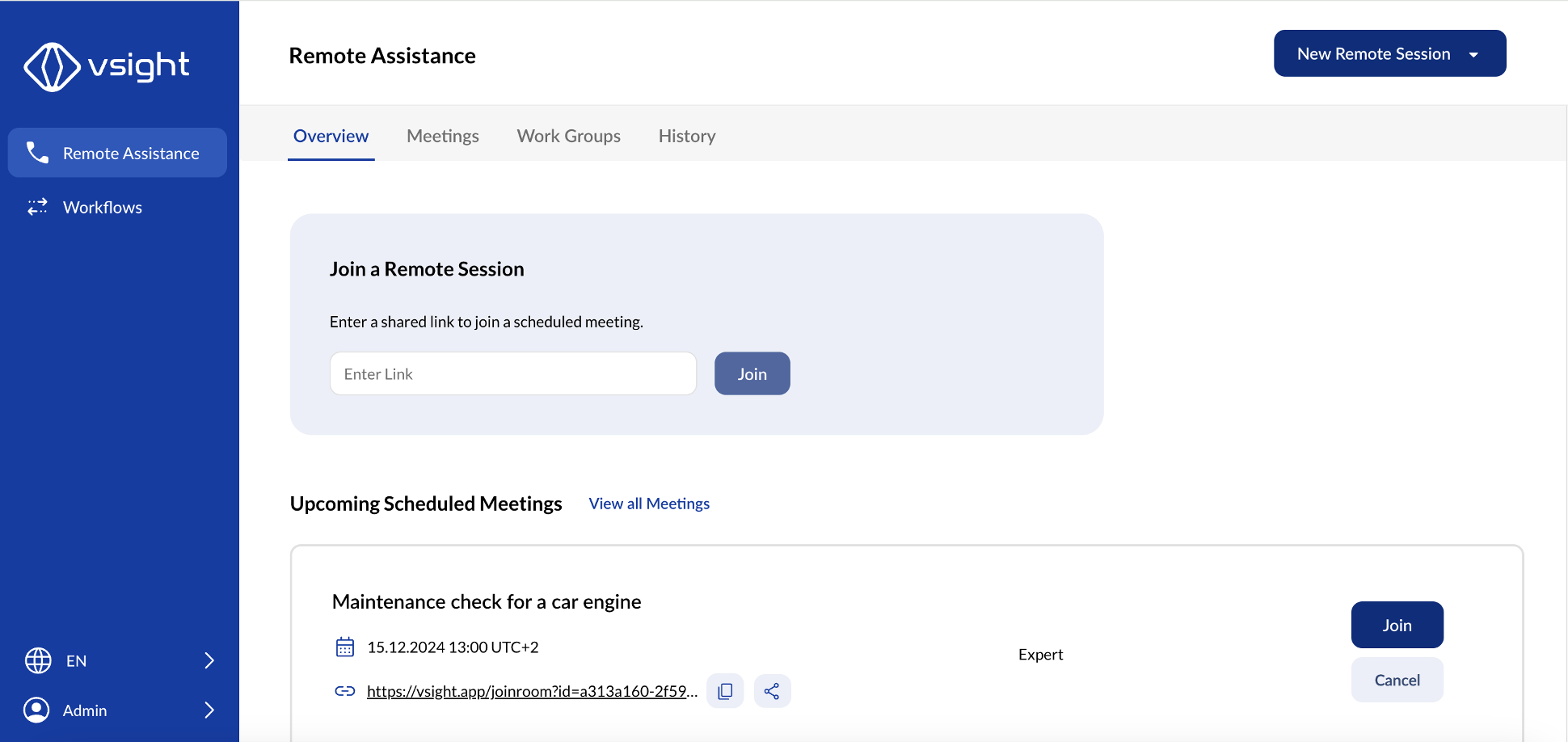
After logging in, users will be directed to the Remote Assistance section. In the Overview tab, you will find:
-
A list of all upcoming meetings.
-
An option to join a remote session if you have a shared link.
Meetings
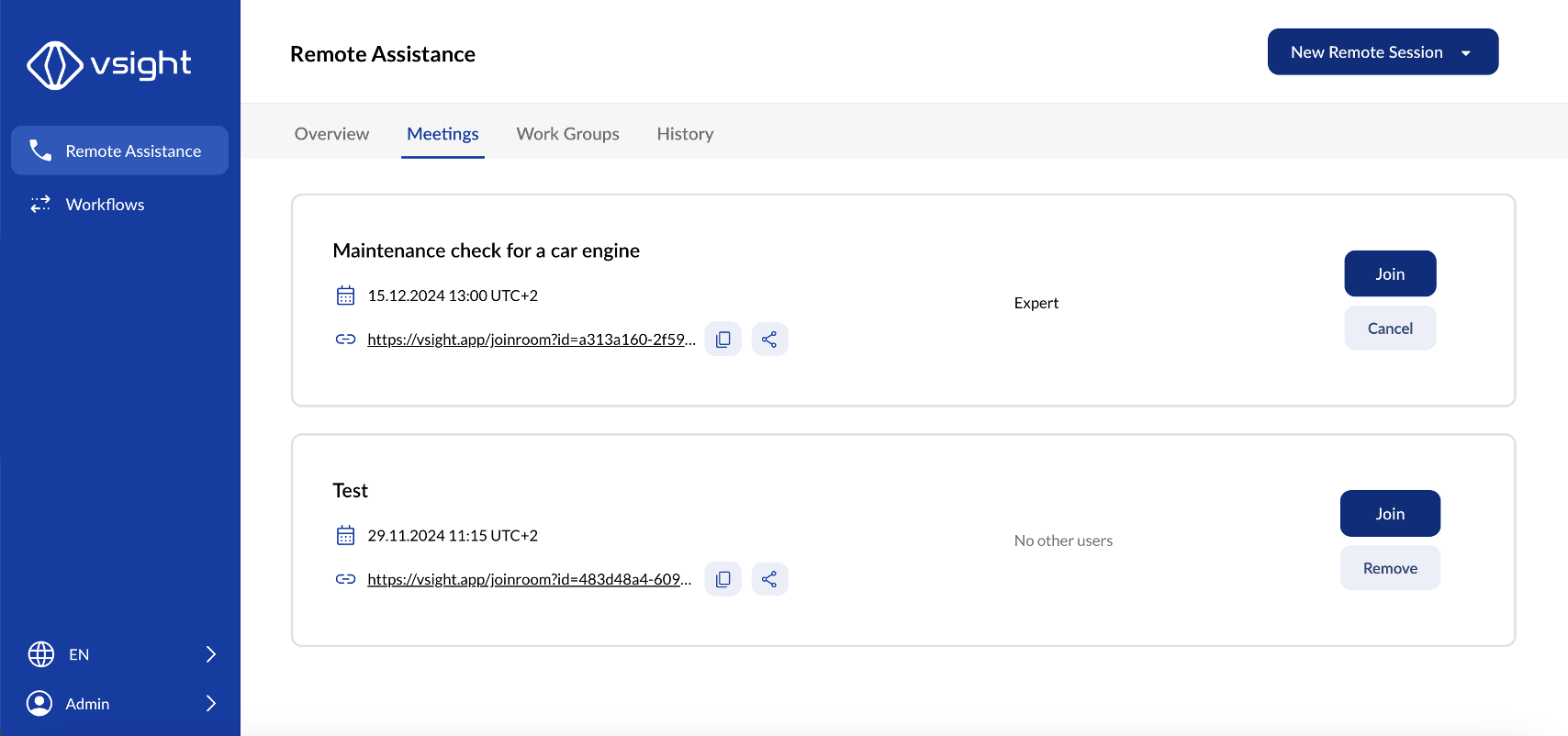
The Meetings tab provides access to both upcoming and past meetings. Within this section, you can:
-
View a list of scheduled meetings.
-
See invited VSight users.
-
Copy or share meeting links.
-
Cancel upcoming meetings or delete past ones as needed.
✅ Tip: Sharing meeting links makes it easy to invite guest participants quickly.
Work Groups
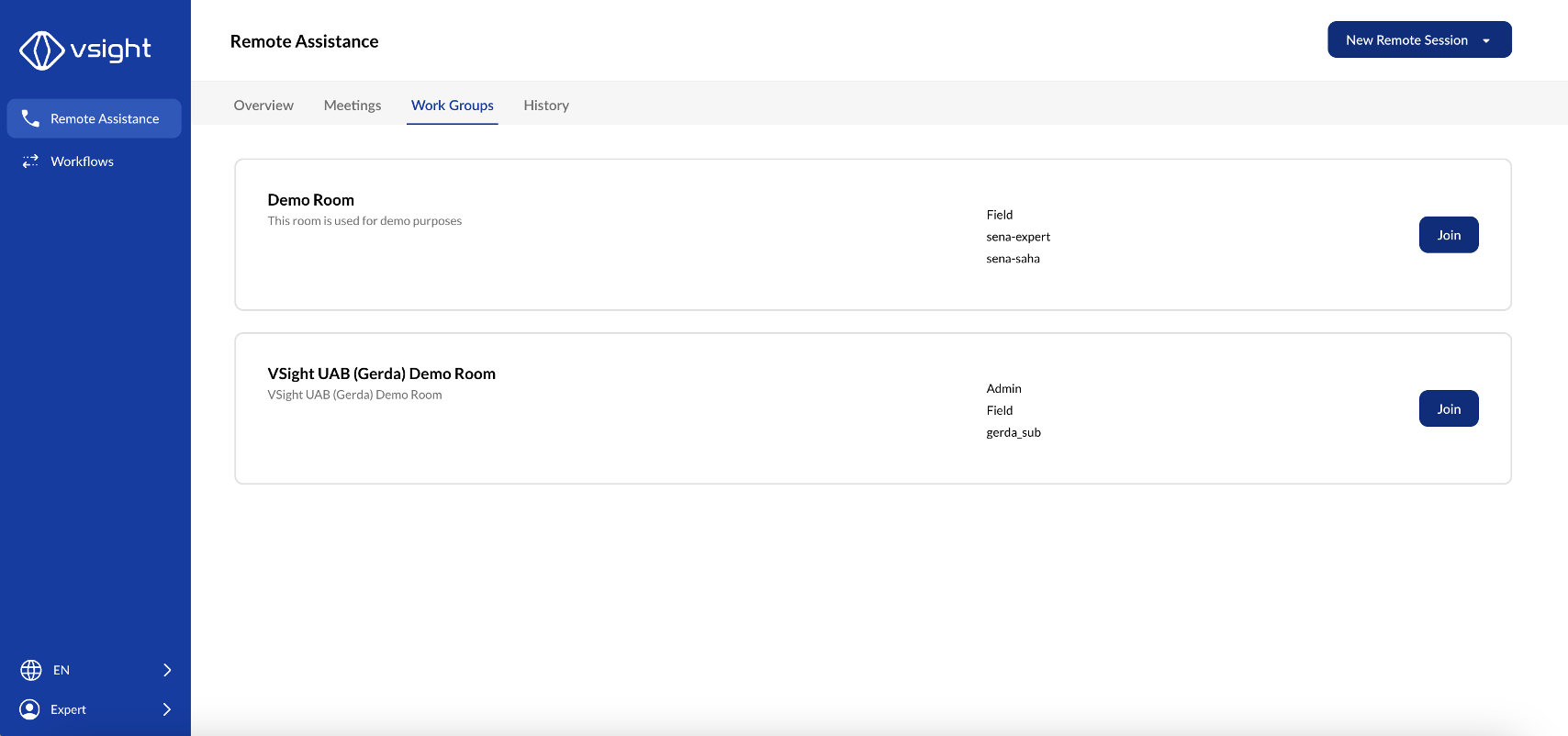
Work Groups are designed for recurring and ongoing meetings, eliminating the need to schedule a new session each time. These groups can be used for:
-
Long-term projects.
-
Regular team check-ins.
-
Client-specific collaborations.
Admins and co-admins can manage work groups, granting access to designated users.
✅ Pro Tip: Setting up work groups saves time by ensuring consistent access for key team members.
Meeting History
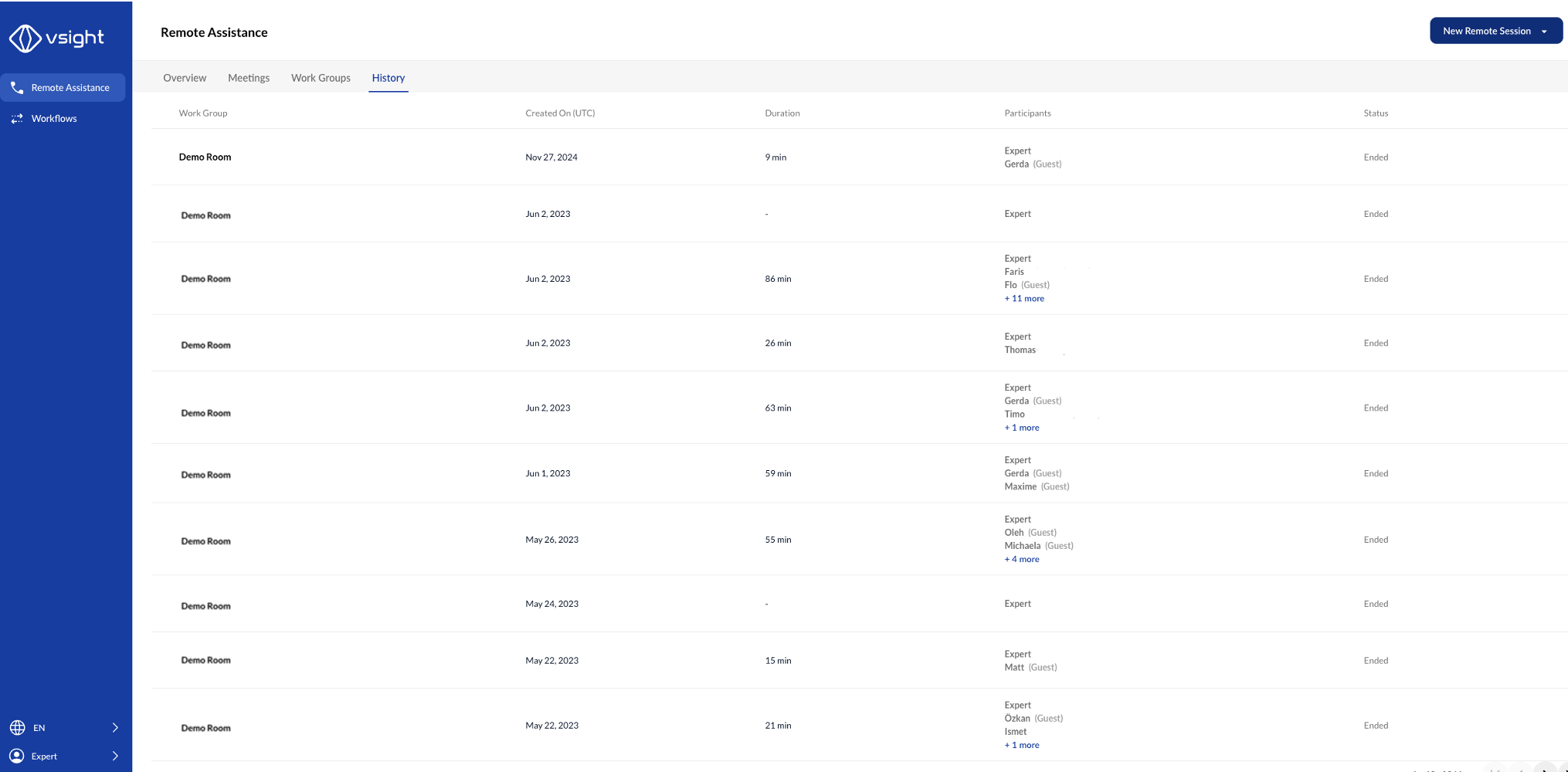
The History tab provides a record of all past meetings, allowing you to:
-
Review previous sessions.
-
Access relevant meeting details.
-
Retrieve shared materials from past collaborations.
✅ Tip: Use the history tab for tracking discussions and referencing previous sessions.
Mobile Devices (iOS and Android) and Smart Glasses
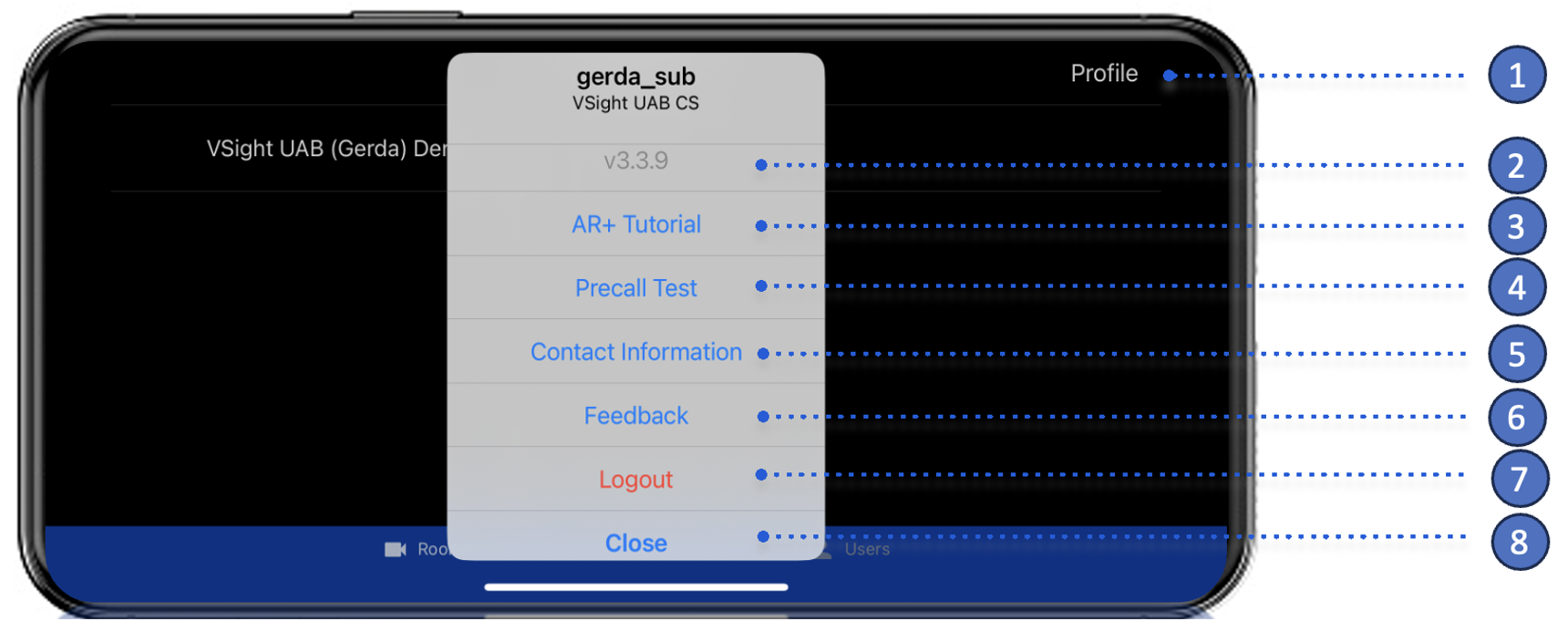
To log out of the VSight Remote app, open your profile and select “Logout” from the drop-down menu. Simply closing the app will not log you out, allowing you to resume where you left off without logging in again.
In your profile section, you can also:
✅ Check the current app version.
✅ Access the AR+ tutorial.
✅ Perform a precall test.
✅ Find contact information for your company’s VSight representative.
✅ Submit a feedback form to report issues or share suggestions with the development team.
📌 Need More Help? – See further information at VSight Help Center or contact support for assistance.