
How to Use Chat Translation
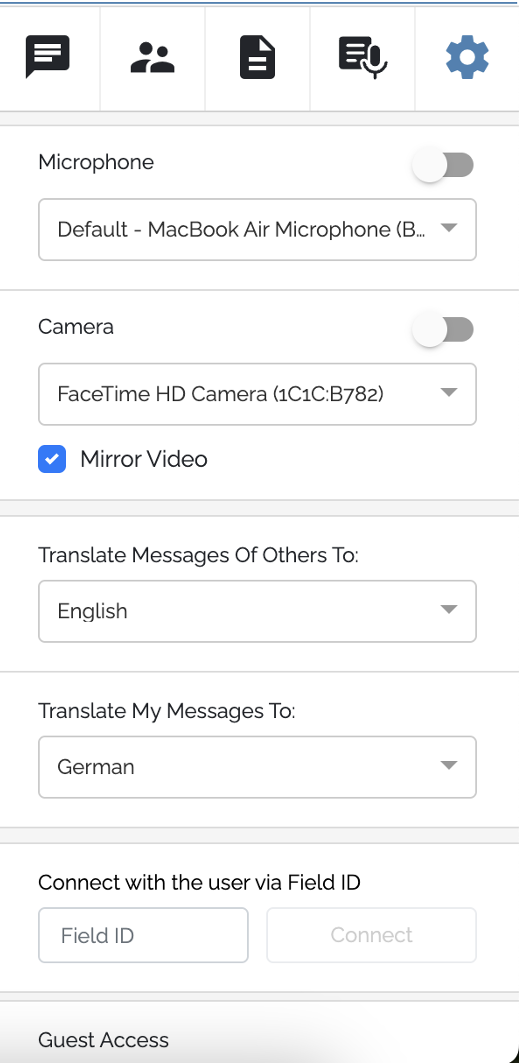
1. Select Incoming and Outgoing Languages
✅ Go to the Settings tab.
✅ Choose your preferred incoming and outgoing message languages.
2. Enter a Chat Message
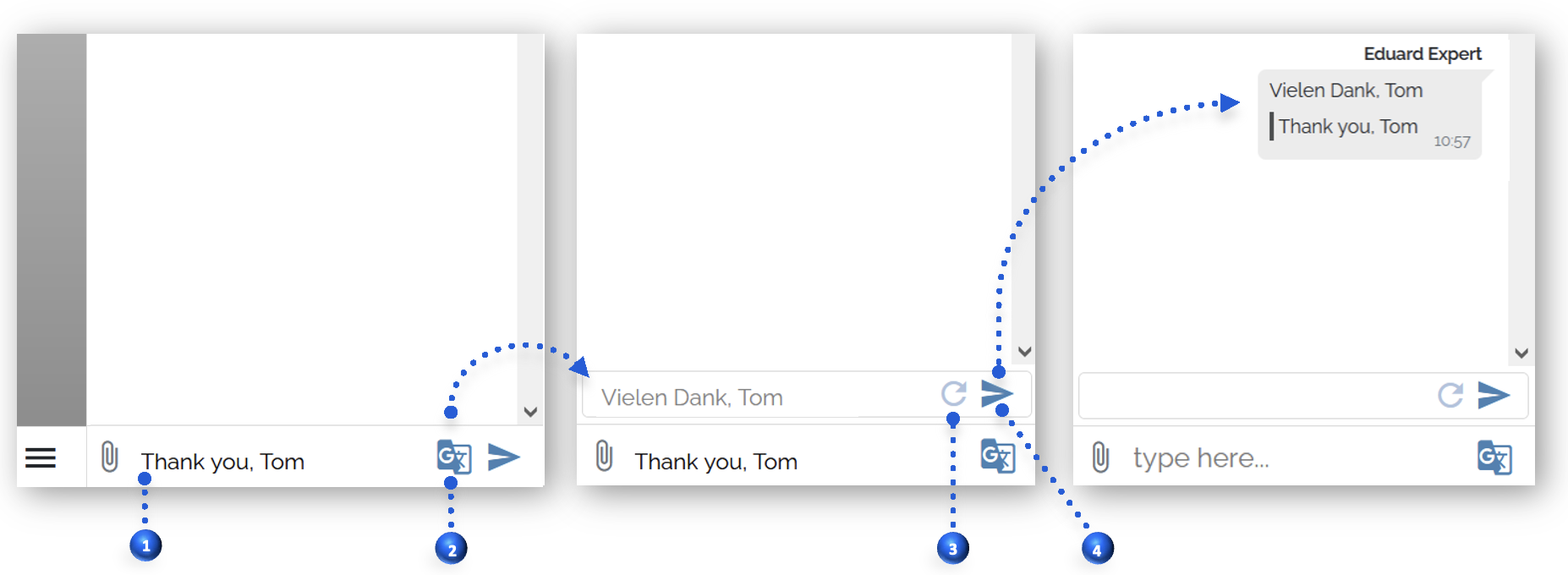
✅ Type your message in the chat field as usual.
3. Enable Translation
✅ Click on the translation icon next to the message input box.
✅ The instant translation will appear in an additional field.
4. Editing & Updating Translation
✅ If you edit the original text, click the update icon to refresh the translation.
5. Sending the Message
✅ Click the send icon to display your message in both the original language and translated version.
Key Features of Chat Translation
✅ Automatic Translations – Messages are translated as soon as they are sent.
✅ Multi-Language Support – Translate messages into various supported languages.
✅ Edit & Update – Modify original text and update the translation accordingly.
✅ Seamless Communication – Helps overcome language barriers in global teams.
Additional Notes
🔹 Chat translation is available only in the web application.
🔹 To change translation settings, go to Settings → Chat Translation and select the desired languages.
The Chat Translation feature enhances global collaboration by providing real-time language support, ensuring clear and effective communication in VSight Remote Assistance sessions.
📌 Need More Help? – See further information at VSight Help Center or contact support for assistance.